Users & Groups
Open Settings > Users & Groups to manage the directory of users, approval groups and delegations.
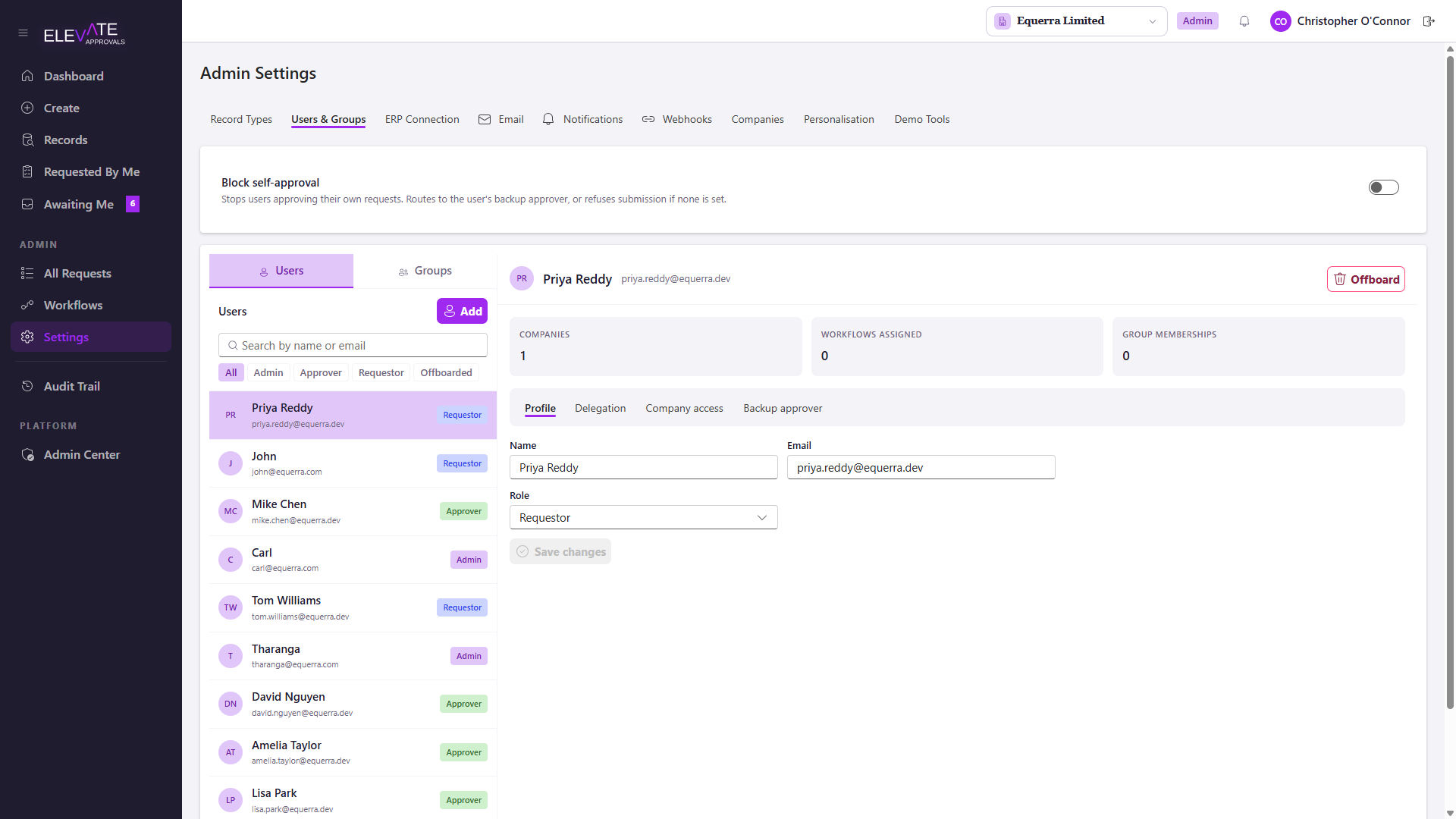
Add a user
Choose Add user. Provide:
- Name and email: the email is used to match the user when they first sign in to Microsoft.
- Role: one of Admin, Approver or Requestor.
- Companies: the legal entities this user can see. If you leave this empty the user gets access to the tenant default company only.
You do not need to know the user's Entra object id. The first time the user signs in, the system fills it in automatically. Until they sign in, the user shows as "Pending first sign-in" but can already be referenced from workflows and approval groups.
Roles
Roles are coarse-grained. They map to what shows up in the sidebar and which actions are available.
| Role | Can submit | Can approve | Can configure | Notes |
|---|---|---|---|---|
| Admin | Yes | Yes | Yes | All capabilities including reporting and audit. |
| Approver | No | Yes | No | Sees Awaiting Me, Records and Audit Trail. |
| Requestor | Yes | No | No | Sees Create, Records and Requested By Me. |
If you need finer control, for example an approver who can also edit one specific workflow, use the Permissions model on the user record to grant that exact capability without elevating the user's role.
Approval groups
Approval groups are reusable lists of approvers used by Group (Quorum) and Group: All must approve workflow steps. See Designing Workflows for how groups feed into step behaviour.
- Add members. Each member can be Member, Lead or Fallback.
- Optionally turn on Sequenced so members are asked in order rather than in parallel.
- Quorum (any, all, or a specific number) is set on the workflow step that references the group, not on the group itself.
Delegation
Any user, not only admins, can set a delegation from the Dashboard. As an admin you can also set a delegation on someone else's behalf from the user editor.
While a delegation is active, requests assigned to the delegator are also visible to the delegate; both can act, and the audit trail records who actually clicked.