Elevate Attachments
Overview
The Elevate Attachments extension enhances Microsoft Dynamics 365 Business Central by allowing you to attach multiple additional documents to outgoing emails. Out of the box, Business Central only allows a single report attachment per email. Elevate Attachments removes this limitation by letting you bundle extra report layouts and uploaded files into reusable Attachment Groups, which are then linked to document report selections for customers and vendors.
When an email is sent from Business Central (e.g. a posted sales invoice), Elevate Attachments automatically includes all the additional reports and files configured in the linked Attachment Group — alongside the standard document attachment.
Additionally, Elevate Attachments includes a powerful Attachment Generation feature that lets you define templates to dynamically generate data-driven file attachments (HTML, CSV, XML, JSON, or PDF) from any table in Business Central. These generated files can be included alongside report layouts and static files in your Attachment Groups.
Elevate Attachments also adds a Send Email with Attachments action to the Customer List, Customer Card, and Vendor List pages, letting you send a standalone email with any Attachment Group's contents at any time — independently of any document workflow.
Key Concepts
| Concept | Description |
|---|---|
| Attachment Group | A collection of additional report layouts, file attachments, and/or generated attachments. You create these once and reuse them across customers or vendors. |
| Attachment Report | A report layout added to an Attachment Group. When an email is sent, the report is rendered using the selected layout and attached in its native format (Excel, Word, or PDF). |
| File Attachment | A static file (e.g. PDF, image, spreadsheet) uploaded to an Attachment Group. The file is attached to every email sent using that group. |
| Attachment Generation | A dynamically generated file attachment based on a template. Templates can pull data from any Business Central table and output it as HTML, CSV, XML, JSON, or PDF. |
| Attachment Generation Template | A reusable definition that specifies how to build a generated attachment — including source table, columns, filters, grouping, styling, and output format. |
| Attachment Group Code | The code field added to Customer/Vendor Report Selections, global Report Selection pages (Sales, Purchase & Warehouse), and the Customer/Vendor Card. Links a document layout or a customer/vendor record to an Attachment Group. |
Supported Document Types
Elevate Attachments works with the following Business Central document types:
Sales
| Document Type | Report Selection Usage |
|---|---|
| Sales Order | S.Order |
| Sales Invoice (unposted) | Pro Forma S. Invoice |
| Posted Sales Invoice | S.Invoice |
| Posted Sales Credit Memo | S.Cr.Memo |
| Customer Statement | C.Statement |
Purchasing
| Document Type | Report Selection Usage |
|---|---|
| Purchase Order | P.Order |
| Posted Purchase Invoice | P.Invoice |
| Posted Purchase Credit Memo | P.Cr.Memo |
Warehouse
| Document Type | Report Selection Usage |
|---|---|
| Warehouse documents | As configured in Report Selection - Warehouse |
Setup Guide
Step 1: Create an Attachment Group
- Use the Tell Me search (Alt+Q) and search for Attachment Groups.
- The Attachment Groups list page opens.
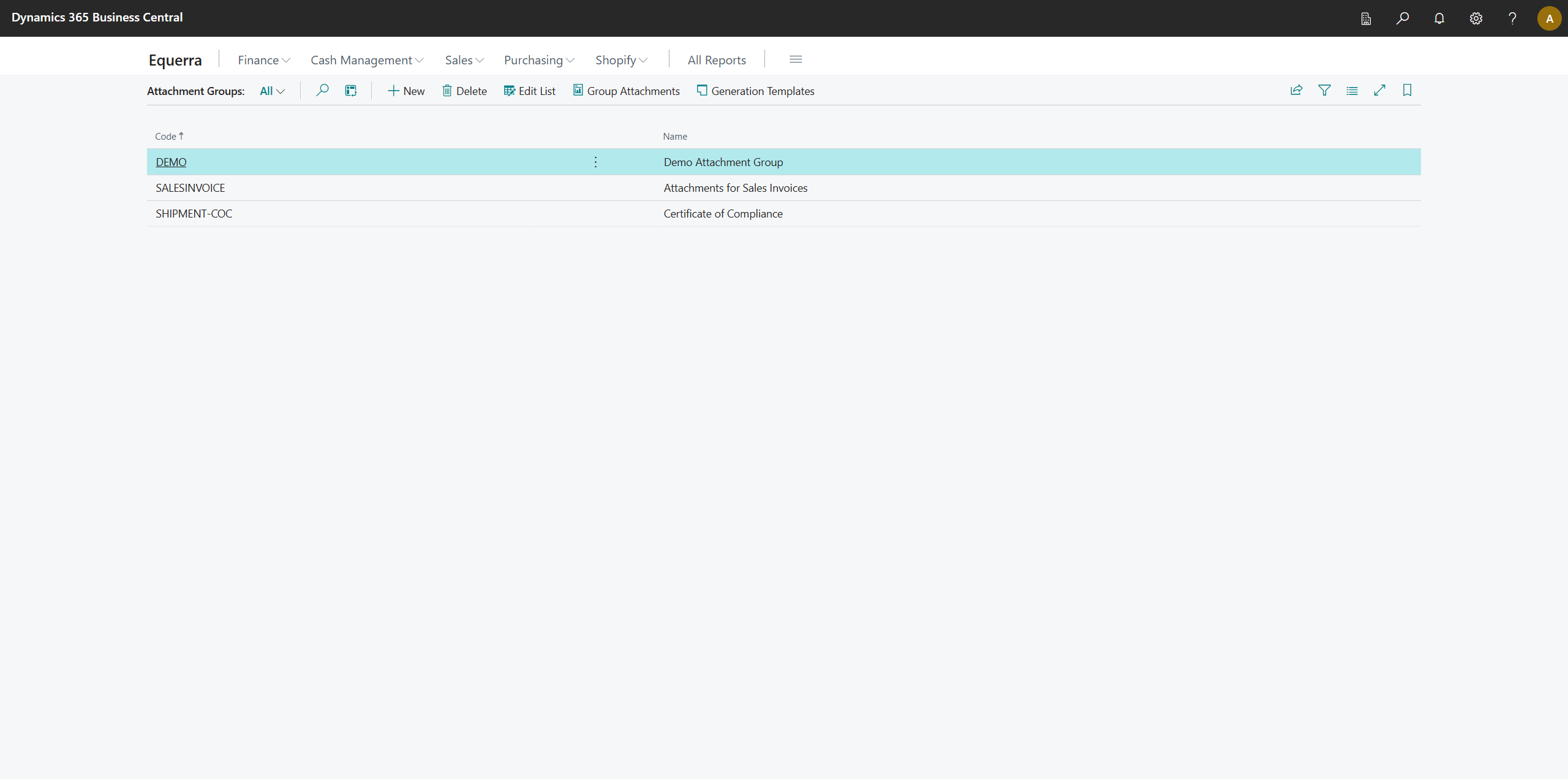
- Click + New to create a new line.
- Enter a Code (up to 20 characters, e.g.
SALES-STD) and a descriptive Name (e.g. "Standard Sales Attachments"). - Repeat to create as many groups as you need (e.g. one per customer segment, one per document type, etc.).
Attachment Groups Fields
| Field | Description |
|---|---|
| Code | A unique code identifying the Attachment Group (up to 20 characters). |
| Name | A descriptive name for the Attachment Group. |
Step 2: Add Reports and Files to the Group
-
From the Attachment Groups list, select the group you want to configure.
-
Click the Group Attachments action in the action bar (or the Process menu).
-
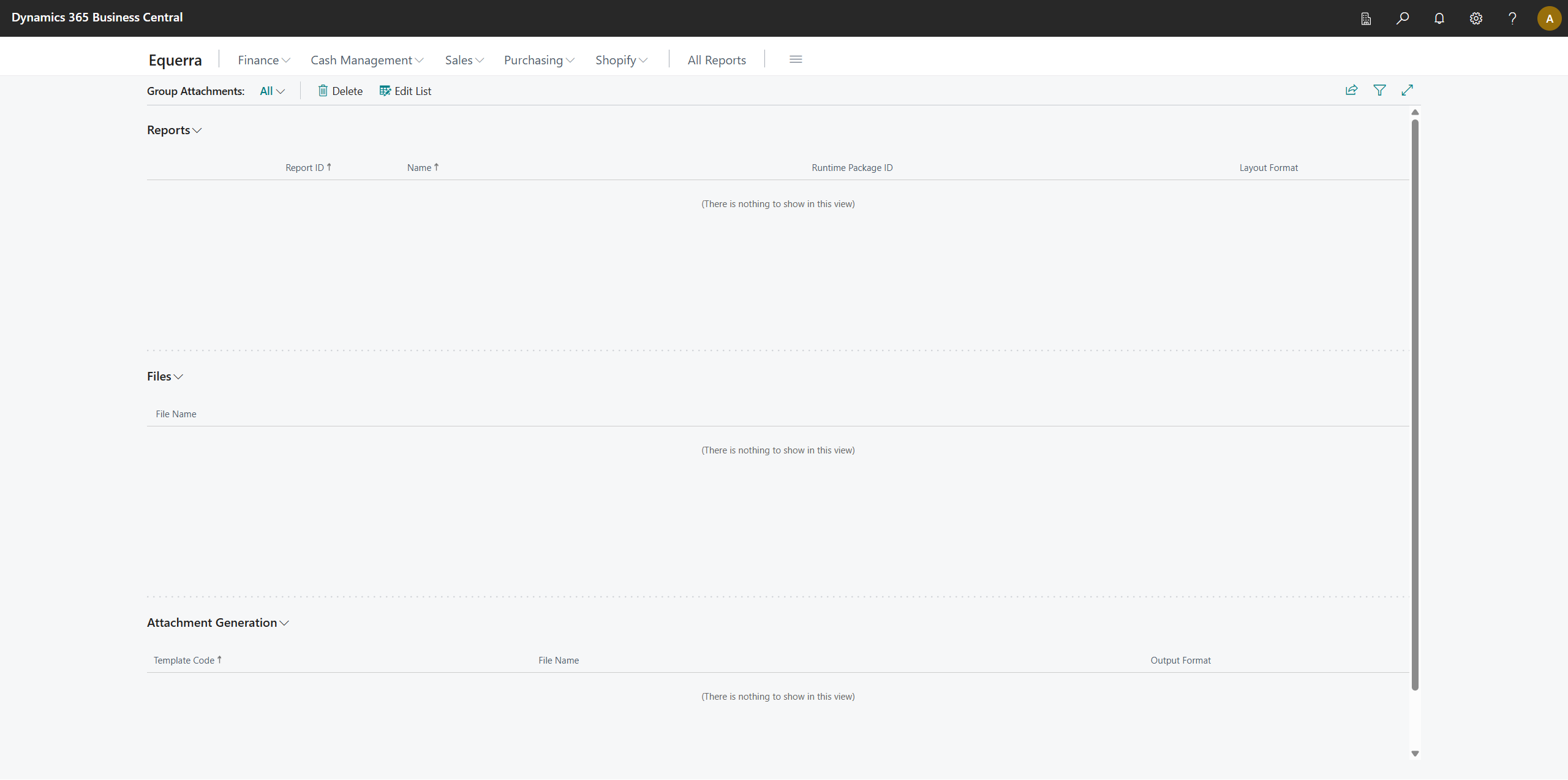
The Group Attachments page opens, showing three sections:
- Reports — additional report layouts to render and attach.
- Files — static files to attach.
- Attachment Generation — dynamically generated file attachments based on templates.
Adding a Report Layout
-
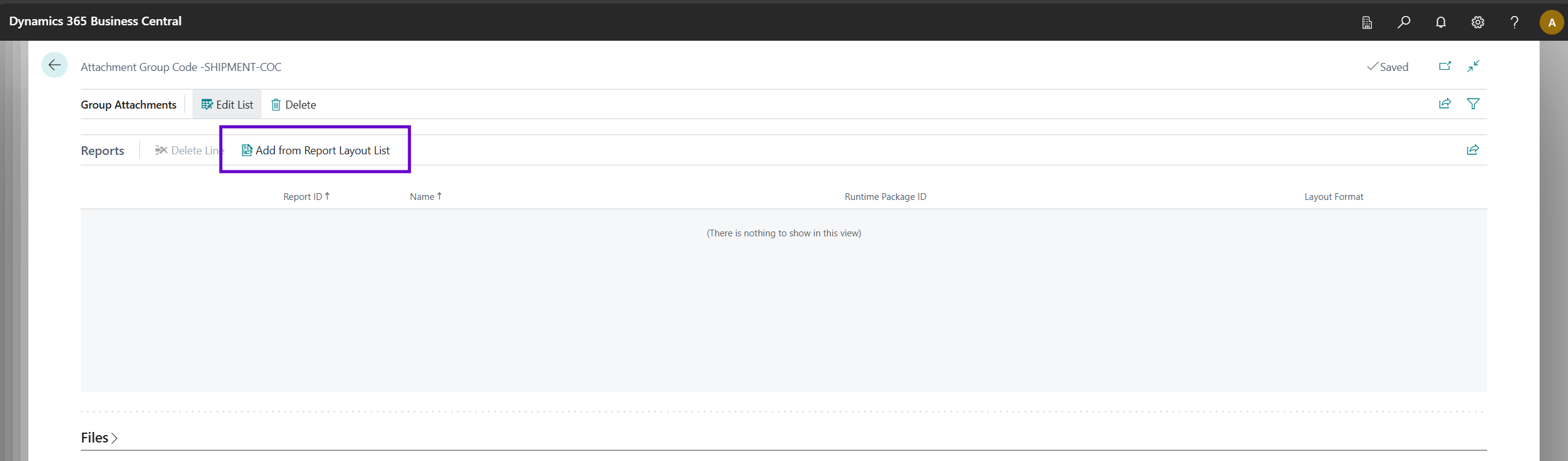
In the Reports section, click the Add from Report Layout List action.
-
A lookup opens showing all available report layouts.
-
Select the desired report layout and click OK.
-
The report's Report ID, Name, Runtime Package ID, and Layout Format are populated automatically.
-
Repeat to add more report layouts as needed.
Note: Reports are rendered and attached in the format matching their layout type — Excel layouts produce .xlsx files, Word layouts produce .docx files, and RDLC layouts produce .pdf files.
Attachment Reports Fields
| Field | Description |
|---|---|
| Report ID | The ID of the report to render and attach. |
| Name | The name of the report. |
| Runtime Package ID | The runtime package ID identifying the specific report layout to use. |
| Layout Format | The format of the report layout (RDLC, Word, Excel, or External). |
Adding a File Attachment
-
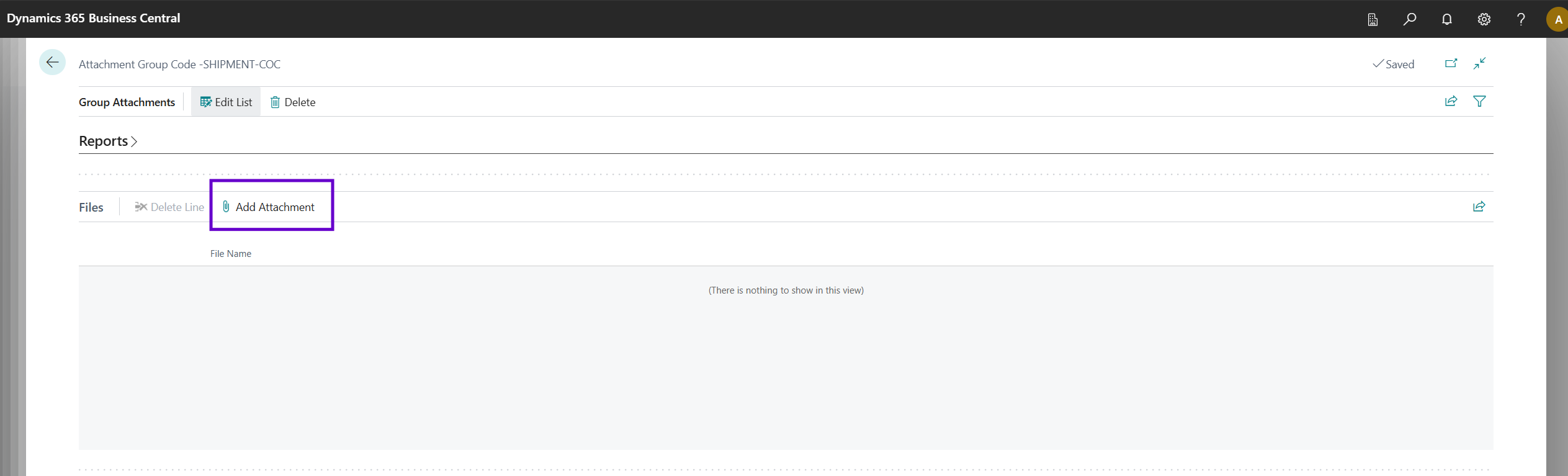
In the Files section, click the Add Attachment action.
-
A file browser dialog opens — select the file you want to upload (e.g. a PDF terms & conditions document, a price list, etc.).
-
The file is uploaded and stored in Business Central. The File Name column displays the uploaded file.
-
Repeat to add more files as needed.
-
To preview or view details of an uploaded file, click on the File Name value — this opens the Document Attachment Details page.
File Attachments Fields
| Field | Description |
|---|---|
| File Name | The name of the uploaded file. Click to open the Document Attachment Details page. |
Adding an Attachment Generation Entry
Prerequisite: You must first create an Attachment Generation Template before you can add one to a group. See Attachment Generation Templates for full details on creating and configuring templates.
- In the Attachment Generation section, select a Template Code from the lookup. Only templates marked as Enabled are available for selection.
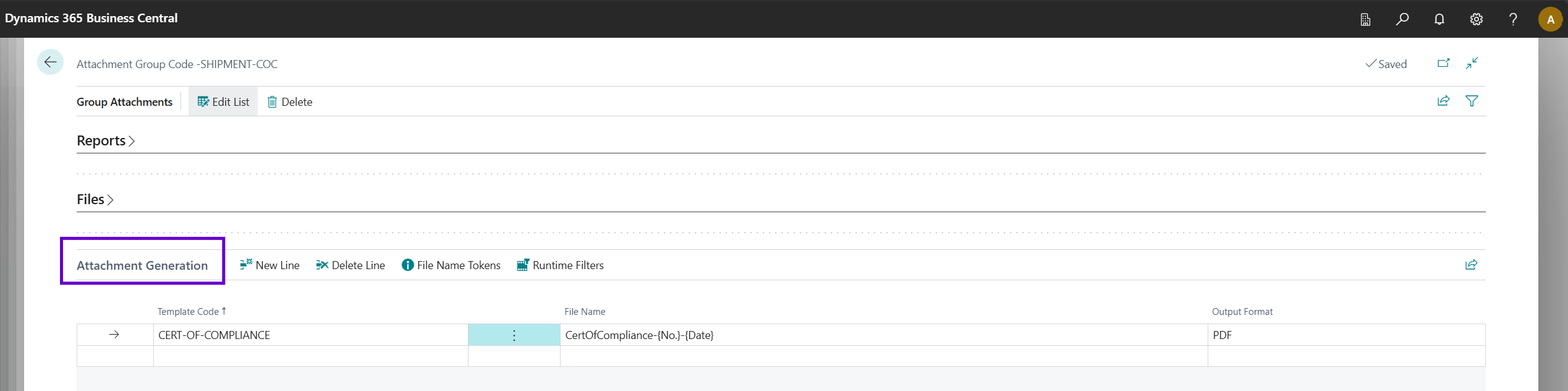
- Optionally set a File Name — if left blank, the template description (or code if blank) is used. Supports tokens such as
{No.},{Date}, and{Group}— see File Name Tokens. - Choose the desired Output Format (HTML, CSV, XML, JSON, PDF, or PDF (Word Layout)). The correct file extension is added automatically. See Word Output — Limitations for details on the Word layout option.
- Optionally override the HTML Layout or Document Layout for this specific entry.
- Use the Runtime Filters action to configure which source table fields should be filtered at send time.
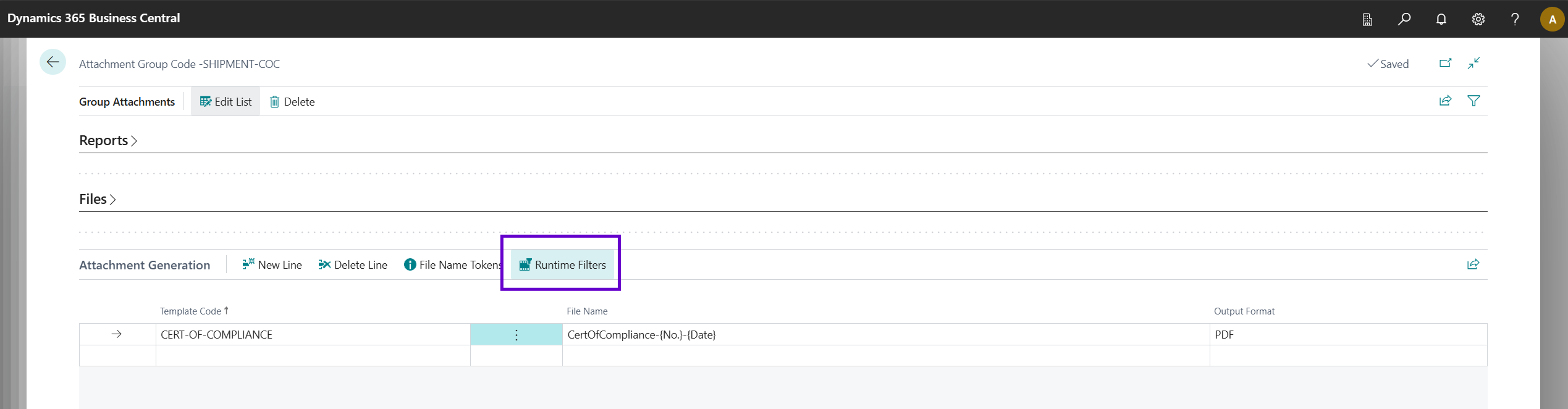
- Repeat to add more generated attachments as needed.
Attachment Generation Attachments Fields
| Field | Description |
|---|---|
| Template Code | The Attachment Generation template to generate and attach. Only enabled templates can be selected. |
| Template Description | The description of the linked template (read-only). |
| File Name | The output file name. If blank, the template description (or code) is used. The correct file extension is added automatically. Supports tokens: {No.}, {Date} (YYYYMMDD), {Group} — see File Name Tokens. |
| Output Format | The output file format: HTML (styled table), CSV (comma-separated values), XML (structured data), JSON, PDF, or PDF (Word Layout). The PDF (Word Layout) option renders using dedicated Word layout reports — see Word Output — Limitations. |
| HTML Layout | Overrides the template's default HTML layout for this entry: Columns (standard table) or Row Per Column (each field as its own row). |
| Document Layout | Overrides the template's default document layout for PDF and Word output: Auto (selects Fixed Column for up to 7 columns, Row Per Column for more), Fixed Column, or Row Per Column. |
| Include | Whether to include this attachment when sending the email. Can be toggled at send time via the Select Attachments dialog. |
Removing Attachments
- To remove a report layout, select the line in the Reports section and press Delete or use the Delete Line action.
- To remove a file, select the line in the Files section and press Delete. The underlying stored document is automatically cleaned up.
- To remove a generated attachment, select the line in the Attachment Generation section and press Delete.
Step 3: Link the Attachment Group to a Report Selection
You can link Attachment Groups at two levels:
Option A: Customer/Vendor-Specific (Document Layouts)
This is the most common approach — it lets you configure different attachment groups per customer or vendor.
- Open the Customer Card (or Vendor Card) for the relevant customer/vendor.
- Navigate to Related > Document Layouts.
- On the report selection line for the relevant usage (e.g. Invoice, Order, Credit Memo, Statement), you will see a new Attachment Group Code field (added by Elevate Attachments).
- Set the Attachment Group Code to the group you created earlier.

- When an email is sent for that document type for this customer/vendor, the additional reports and files from the Attachment Group will be included.
Option B: Global Report Selections (All Customers/Vendors)
Use this approach if you want the same attachments for all customers or all vendors.
- Search for Report Selection - Sales, Report Selection - Purchase, or Report Selection - Warehouse using Tell Me.
- On the relevant usage line, you will see the Attachment Group Code field.
- Set the Attachment Group Code to your desired Attachment Group.
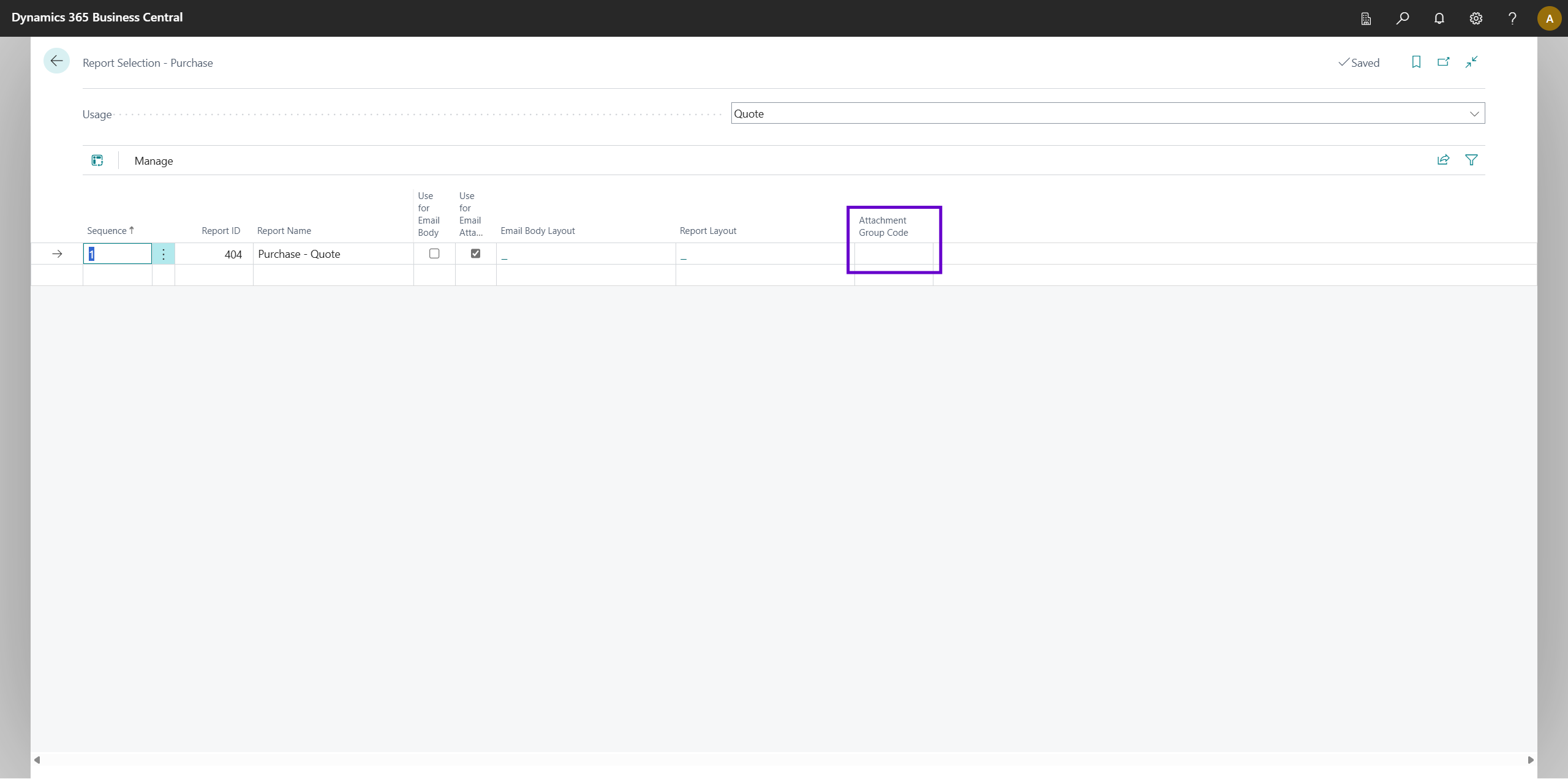
Important: Customer/Vendor-specific document layouts take priority. If a customer has their own document layout configured with an Attachment Group, that will be used instead of the global report selection setting.
Sending Ad-hoc Emails
Elevate Attachments also supports sending standalone emails with attachments outside of any document workflow. See Sending Ad-hoc Emails for details.
Attachment Generation Templates
Attachment Generation is a powerful feature that lets you define templates to dynamically generate data-driven file attachments (HTML, CSV, XML, JSON, or PDF) from any table in Business Central. See Attachment Generation Templates for the full reference.
Pages Reference
| Page | Type | Description |
|---|---|---|
| Attachment Groups | List | Create and manage Attachment Groups. Searchable via Tell Me. |
| Group Attachments | List | View and manage the reports, files, and generated attachments within a specific Attachment Group. Opened from the Attachment Groups list. |
| Attachment Reports | List Part | The reports sub-section within Group Attachments. Shows Report ID, Name, Runtime Package ID, and Layout Format. |
| File Attachments | List Part | The files sub-section within Group Attachments. Shows file names with drill-down to view file details. |
| Attachment Generation Attachments | List Part | The generated attachments sub-section within Group Attachments. Shows Template Code, Template Description, File Name, Output Format, HTML Layout, PDF Layout, and Include. |
| Attachment Generation Templates | List | Create and manage Attachment Generation Templates. Searchable via Tell Me. |
| Attachment Generation Template Card | Card | Configure a single template including columns, rows, cells, source table filters, runtime filters, and styling. |
| Columns | List Part | Define the columns for a template (subpage of the Template Card). |
| Rows | List Part | Define the rows for a Manual template (subpage of the Template Card). |
| Attachment Generation Cells | List | Configure individual cell values for Manual templates. Opened via the Edit Cells action. |
| Column Relation Setup | Card | Configure how a column links to a related table: set relation table, display field, join fields, and additional filters. Includes a Save as Preset action. |
| Column Filters | List | Define per-column source table filters. Opened via the Column Filters action on the Columns subpart. |
| Relation Presets | Worksheet | Create and manage named relation presets at the template level. Opened via the Relation Presets action on the Columns subpart. |
| Relation Preset Card | Card | Configure a single relation preset including its join fields and additional filters. |
| Source Table Filters | List Part | Define static filters on the source table for Data Source templates. |
| Runtime Filters | List | Define fields whose filter values are supplied at runtime. Opened via the Runtime Filters action on the Attachment Generation section. |
| File Name Tokens | List | View the tokens available for use in the File Name field ({No.}, {Date}, {Group}). |
| Select Attachments | Dialog | Presented when sending emails; allows you to choose which attachments to include and review runtime filter values. |
| Output | Dialog | Displays generated output for preview or copy purposes. |
| Enter Email Address | Dialog | Prompts for an email address when using the Send via Email action. |
Fields Added to Standard Pages
Elevate Attachments adds the Attachment Group Code field to the following standard Business Central pages:
| Page | Location |
|---|---|
| Customer Card | After the "E-Mail" field |
| Vendor Card | After the "E-Mail" field |
| Customer Document Layouts | After the "Email Attachment Layout" field |
| Vendor Document Layouts | After the "Email Attachment Layout" field |
| Report Selection - Sales | After the "Email Body Layout Code" field |
| Report Selection - Purchase | After the "Email Body Layout Code" field |
| Report Selection - Warehouse | After the "Report ID" field |
Note: You can personalise the page to move the column as needed.
Permissions
The extension includes a permission set that grants full access to all Elevate Attachments objects. Ensure users who need to configure or use Elevate Attachments have the ElevateAttach_ELA_EQL permission set (captioned "Elevate Attachments") assigned, or have equivalent permissions to the following objects:
| Object Type | Object | Access |
|---|---|---|
| Table Data | Attachment Group | Read, Insert, Modify, Delete |
| Table Data | Attachment Report | Read, Insert, Modify, Delete |
| Table Data | File Attachment | Read, Insert, Modify, Delete |
| Table Data | Group Attachment | Read, Insert, Modify, Delete |
| Table Data | Attachment Generation Template | Read, Insert, Modify, Delete |
| Table Data | Attachment Generation Column | Read, Insert, Modify, Delete |
| Table Data | Attachment Generation Row | Read, Insert, Modify, Delete |
| Table Data | Attachment Generation Cell | Read, Insert, Modify, Delete |
| Table Data | Col Relation | Read, Insert, Modify, Delete |
| Table Data | AG Attachment | Read, Insert, Modify, Delete |
| Table Data | AG Source Filter | Read, Insert, Modify, Delete |
| Table Data | AG Runtime Filter | Read, Insert, Modify, Delete |
| Table Data | Column Filter | Read, Insert, Modify, Delete |
| Table Data | Col Relation Filter | Read, Insert, Modify, Delete |
| Table Data | Relation Preset | Read, Insert, Modify, Delete |
| Table Data | Relation Preset Filter | Read, Insert, Modify, Delete |
| Table Data | Preset Col Relation | Read, Insert, Modify, Delete |
| Table Data | PDF Buffer | Read, Insert, Modify, Delete |
| Table Data | PDF Matrix Buffer | Read, Insert, Modify, Delete |
| Pages | All Elevate Attachments pages | Execute |
| Codeunits | All Elevate Attachments codeunits | Execute |
| Reports | PDF Output, PDF Matrix Output, Word Output, Word Matrix Output | Execute |
Frequently Asked Questions
Q: Can I use the same Attachment Group for multiple customers? A: Yes. Attachment Groups are reusable. You can assign the same group code to as many customer or vendor document layouts as you like.
Q: What file types can I upload as file attachments? A: Any file type supported by Business Central's Document Attachment functionality (e.g. PDF, XLSX, DOCX, PNG, JPG, etc.).
Q: What format are additional report attachments saved in? A: Reports are attached in the format matching their layout type: Excel layouts produce .xlsx files, Word layouts produce .docx files, and RDLC layouts produce .pdf files.
Q: What happens if no Attachment Group is assigned? A: Nothing changes — Business Central sends emails exactly as it does without the extension. Elevate Attachments only activates when an Attachment Group Code is present on the active report selection.
Q: Can I use Elevate Attachments with both Sales and Purchase documents? A: Yes. The extension supports Sales, Purchase, and Warehouse document types.
Q: Can I send an ad-hoc email to a customer or vendor without it being triggered by a document?
A: Yes. Use the Send Email with Attachments action on the Customer List, Customer Card, or Vendor List pages. If the record has an Attachment Group Code set on the Customer or Vendor Card, that group is used automatically. Otherwise, you are prompted to choose one. The record's No. is passed as the {No.} runtime filter token for any generated attachments in the group.
Q: Can I set a default Attachment Group for a specific customer or vendor? A: Yes. Open the Customer Card or Vendor Card and set the Attachment Group Code field (shown after the E-Mail field). This is used as the default when the Send Email with Attachments action is triggered from that record.
Q: Do I need to do anything special when sending emails? A: No. Once configured, Elevate Attachments works automatically in the background. When you send a document email through Business Central's standard process, the additional attachments are included without any extra steps. If generated attachments with runtime filters are configured, you may see a dialog to review filter values.
Q: What output formats are available for generated attachments? A: Attachment Generation Templates support six output formats: HTML (styled table), CSV (comma-separated values), XML (structured data), JSON, PDF, and PDF (Word Layout). The PDF (Word Layout) option renders using dedicated Word layout reports with fixed styling — see Word Output — Limitations for details. You choose the format per attachment entry in the Attachment Group.
Q: What is the difference between Manual and Data Source template types? A: Manual templates let you define each row and cell individually — useful for fixed-format or summary attachments. Data Source templates automatically generate rows by querying a specified Business Central table — useful for dynamic, data-driven attachments like line item lists or ledger entry summaries.
Q: Can I preview a generated attachment before sending? A: Yes. Use the Download HTML with Filters, Download Word with Filters, Download CSV with Filters, or the equivalent action for your desired output format on the Attachment Generation Template Card to generate and download the output without sending an email.
Q: What is the difference between PDF and PDF (Word Layout)? A: PDF renders using RDLC report layouts with full styling support (custom fonts, colours, alternating rows). PDF (Word Layout) renders using dedicated Word layout reports with fixed styling (bold blue labels, grey separators). PDF (Word Layout) is recommended when you prefer Word-style formatting for email attachments. To download an editable Word (.docx) document, use the Download Word with Filters action on the Template Card. See Word Output — Limitations for full details.
Q: What are Runtime Filters?
A: Runtime Filters are template filters whose values are determined at the time of sending rather than being hard-coded. For example, you might configure a runtime filter on Document No. using {No.} as the default value so the generated attachment automatically includes only data related to the document being emailed.
Q: What are Relation Presets? A: Relation Presets let you save a related table configuration (relation table, join field mappings, and additional filters) as a named preset at the template level. Once created, you can apply the same preset to multiple columns without reconfiguring each one. Use the Save as Preset action on the Column Relation Setup card to create a preset from an existing column configuration.
Q: What are Column Filters? A: Column Filters restrict source table records for a specific column only, independently of the template-level Source Table Filters. They are useful when different columns need to pull values from the same source table but with different filtering criteria.
Q: What are File Name Tokens?
A: File Name Tokens are placeholders in the File Name field of an Attachment Generation entry that are replaced with real values at generation time. Available tokens are {No.} (the record's identifier), {Date} (today's date in YYYYMMDD format), and {Group} (the attachment group code).
Q: Does the template need to be Enabled before I can use it? A: Yes. A template must have the Enabled field set to true before it can be added to an Attachment Group. This prevents accidentally using incomplete or draft templates.
Troubleshooting
| Issue | Resolution |
|---|---|
| Additional attachments are not appearing on emails | Verify that the Attachment Group Code is set on the correct report selection line (either customer-specific document layouts or global report selections). |
| "Record not found" error when sending an email | Ensure the report layout referenced in the Attachment Group still exists. If a layout was deleted or renamed, remove it from the group and re-add it. |
| File attachment is missing from email | Confirm the file was uploaded successfully by clicking the file name in the Group Attachments page to view its details. |
| Error when sending email with an Attachment Group report | The Report ID of each report in the Attachment Group must match the Report ID configured on the document layout / report selection line. Even if the usage (e.g. Invoice) is the same, using a different Report ID in the Attachment Group will cause an error. Remove the mismatched report from the group and re-add it using the correct Report ID. |
| Generated attachment is empty or missing data | Check the Source Table Filters, Column Filters, and Runtime Filters on the template. Ensure the filters match records in the source table. Use the Download HTML with Filters action to test. |
| Template is not available in the lookup | Ensure the Enabled field on the template is set to true. Only enabled templates appear in the Template Code lookup on the Attachment Generation section. |
| User cannot access Attachment Groups page | Ensure the user has the ElevateAttach_ELA_EQL permission set assigned, or equivalent permissions. |