Approver Guide
This guide is for users with the Approver role. As an approver your job is to review requests that other people have submitted and either approve, reject, return for changes, or forward them to someone better placed to decide.
You do not create master data records yourself. If you also need that ability, ask an administrator to switch your role to Admin or to grant you Requestor capabilities in addition.
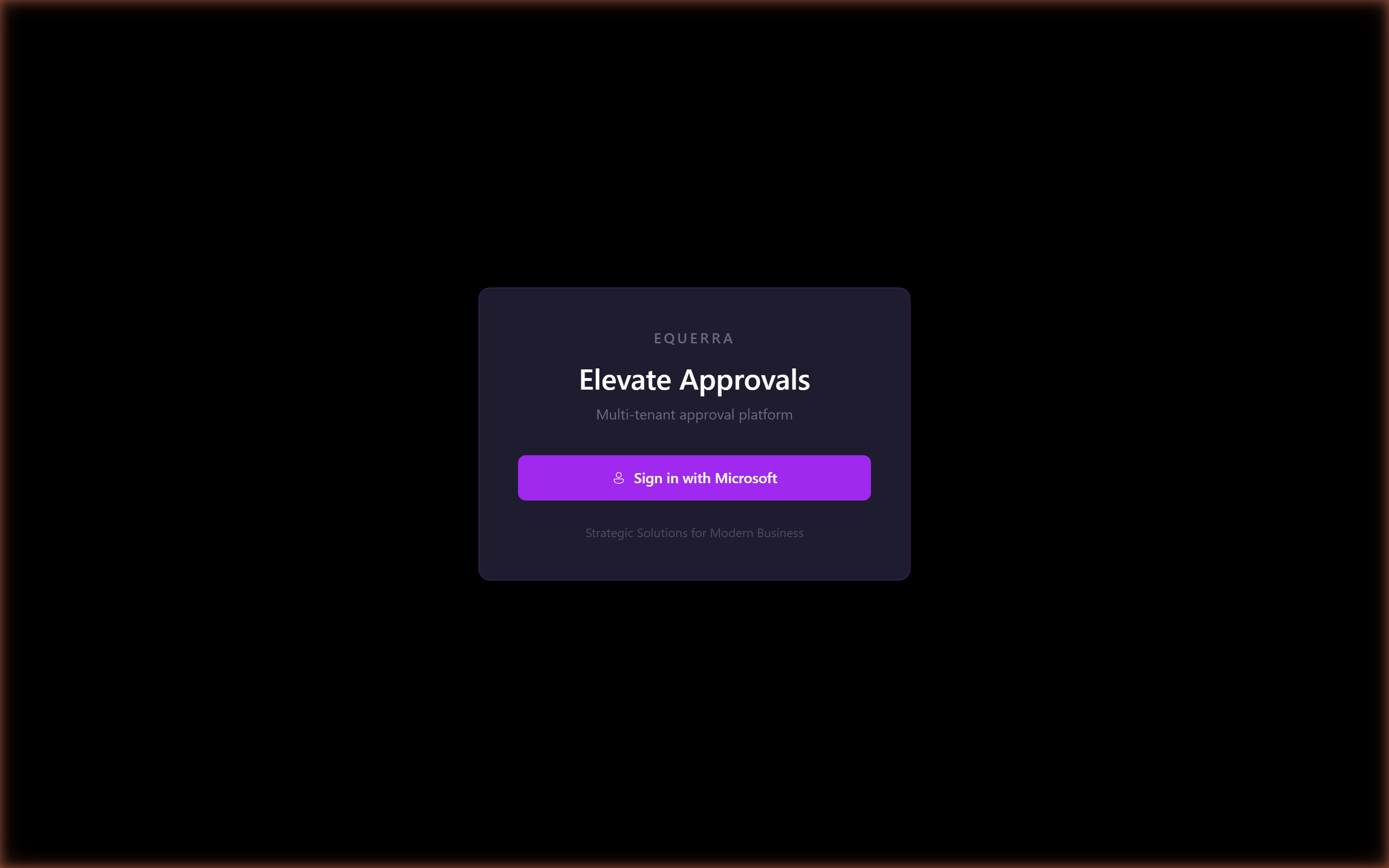
Signing in
- Browse to your tenant's portal address.
- Choose Sign in and complete Microsoft sign-in with your work account.
- The first time you sign in, your user record is matched by email or by your Microsoft Entra object id. If your account is not yet provisioned, you will see a message asking you to contact an administrator.
The dashboard
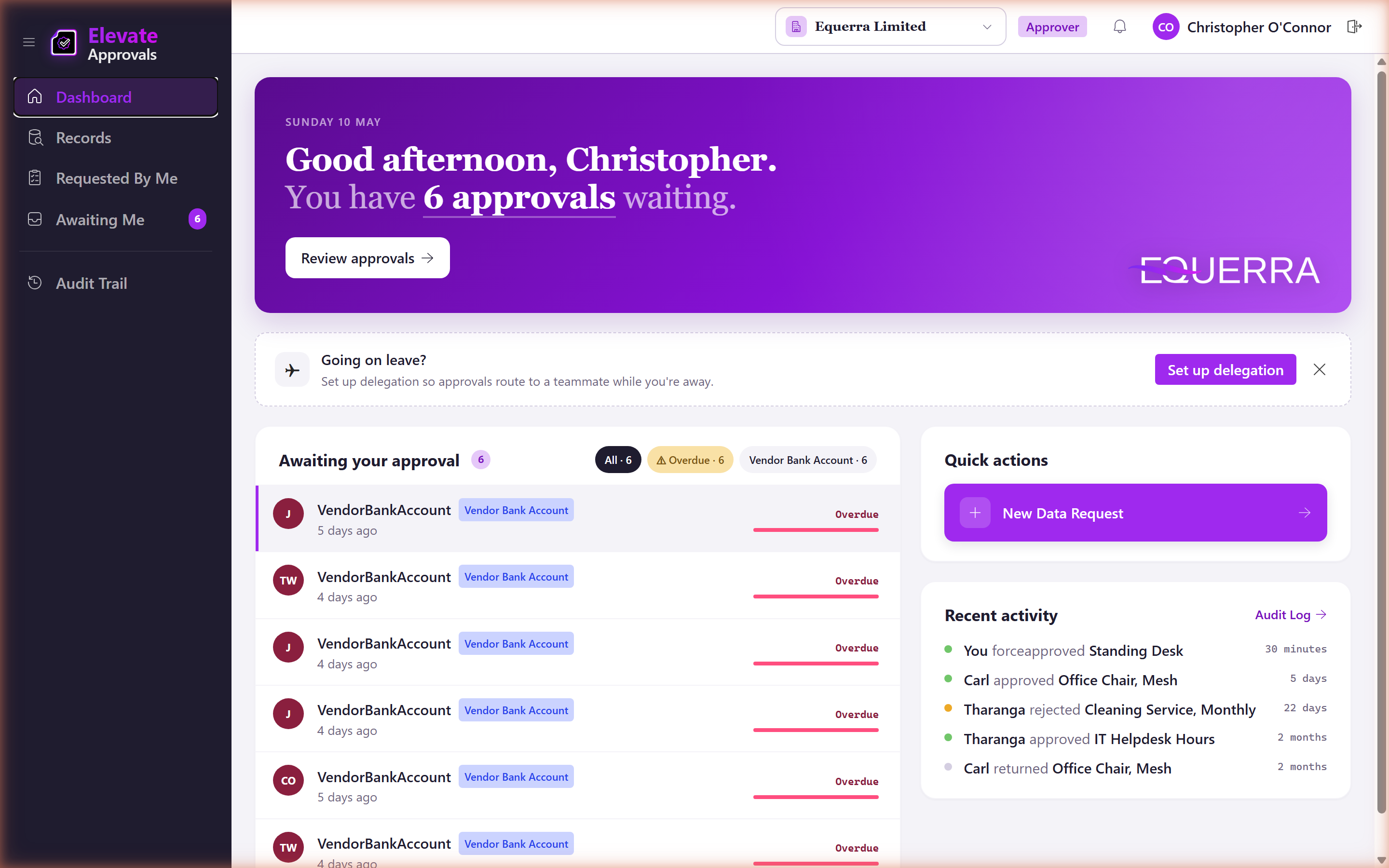
The dashboard is the first screen you land on. It shows three things:
- Awaiting Me: requests that need your decision. The number is also reflected in the sidebar badge.
- Recent activity: a feed of decisions you and others have made recently in your tenant.
- Quick actions: shortcuts to set delegation, jump to the inbox or open the audit trail.
Keyboard shortcuts work on the dashboard:
jandk(or down and up arrows) move between requests.Enteropens the highlighted request.aapproves directly from the preview drawer.rrejects directly from the preview drawer.Cmd+K(orCtrl+K) opens the command palette to jump to any screen.