Elevate Reversals
Overview
The Elevate Reversals streamlines the correction of posted general journal entries in Business Central. Instead of manually reversing entries and re-keying journal lines, this extension reverses the original posting and automatically recreates editable journal lines in a new correction batch - so you can fix the mistake and repost with minimal effort.
Key benefits:
- Reverse and correct posted journal entries in a single action
- Automatically recreates the original journal lines for editing
- View original entries side-by-side while making corrections
- Correction batch is automatically cleaned up after posting
- Available from multiple pages: G/L Registers, General Ledger Entries, and Posted General Journal
Key Concepts
| Concept | Description |
|---|---|
| G/L Register | A record that groups all G/L entries created by a single posting. The extension reverses an entire register at a time. |
| Reversal | The standard Business Central process that creates offsetting entries to undo a posting. The original entries are marked as reversed. |
| Correction Batch | A new journal batch automatically created by the extension. The batch is named CORR followed by the G/L Register number (e.g., CORR42 for register 42). It contains editable copies of the original journal lines so you can make corrections before reposting. |
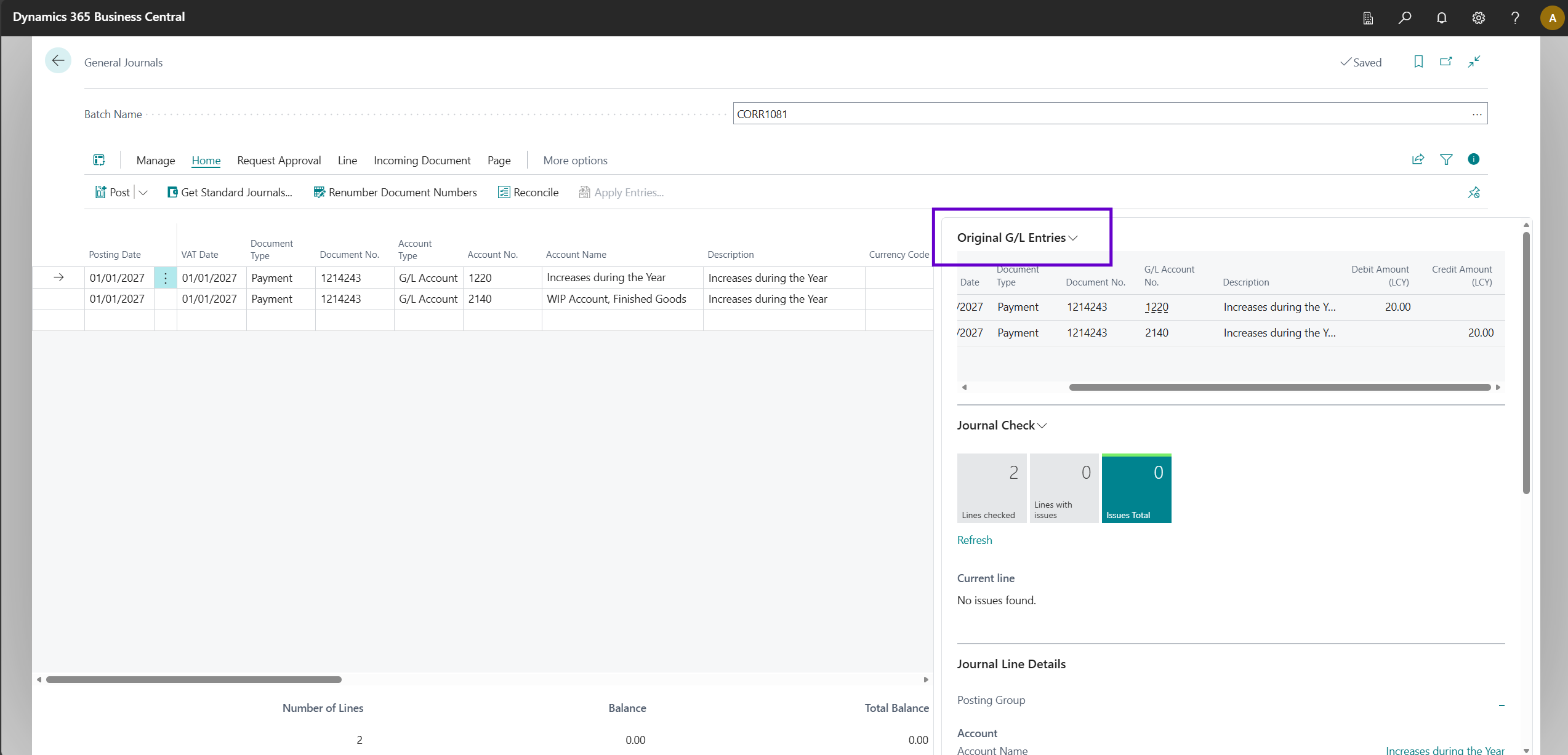
| Original G/L Entries | A FactBox that appears on the General Journal page when editing a correction batch. It shows the original posted entries for reference. |
Setup Guide
No setup is required. After installing the extension, the Reverse & Correct action is automatically available on the supported pages.
The only prerequisite is that at least one General Journal Template of type General (non-recurring) exists in your environment. This is standard in all Business Central environments.
Important: Assign the Elevate Reversals permission set to users who need to reverse and correct journal entries. See the Permissions section below.
Actions
G/L Registers
| Action | Description |
|---|---|
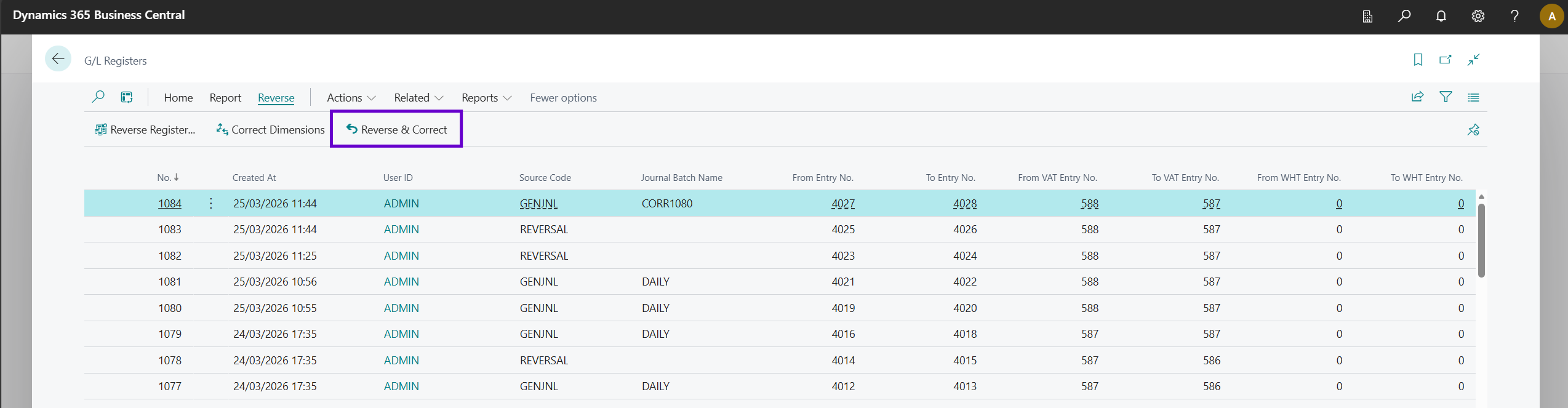
| Reverse & Correct | Reverses the selected register and creates a correction journal batch with the original lines so you can correct and repost them. Located in the Process action group, next to the standard Reverse Register action. Disabled when the register has already been reversed. |
General Ledger Entries
| Action | Description |
|---|---|
| Reverse & Correct | Reverses the transaction containing the current entry and creates a correction journal batch with the original lines. Located in the Process action group, next to the standard Reverse Transaction action. Disabled when the entry has already been reversed. |
Posted General Journal
| Action | Description |
|---|---|
| Reverse & Correct | Reverses the register for the selected entries and creates a correction journal batch with the original lines so you can correct and repost them. Located in the Process action group. |
How to Use
Example: Correcting a posted journal entry from G/L Registers
- Open the G/L Registers page.
- Select the register that contains the entries you want to correct.
- Choose Process > Reverse & Correct.
- The standard Business Central Reverse Entries page opens, showing all entries in the register. Review them and choose Reverse.
- The extension creates a correction journal batch and opens the General Journal page with the recreated lines.
- The Original G/L Entries FactBox appears on the right, showing the original posted entries for reference.
- Edit the journal lines as needed - change amounts, accounts, dimensions, or descriptions.
- Post the journal.
- Close the General Journal page. The correction batch is automatically deleted when you close the page.
How It Works
- When you choose Reverse & Correct, the extension first validates that the register has not already been reversed, all G/L accounts exist and allow direct posting, dimensions are valid, and the posting dates fall within an open accounting period.
- The standard Business Central Reverse Entries page opens. You review the entries and confirm the reversal.
- After successful reversal, the extension creates a new journal batch named CORR followed by the register number (e.g., CORR42).
- The original posted entries are copied into the new batch as editable journal lines, preserving amounts, dimensions, document numbers, descriptions, and posting groups.
- The General Journal page opens with the correction batch ready for editing.
- After you post the corrected journal, close the General Journal page. The correction batch is automatically deleted when the page is closed.
Note: The reversal and correction batch creation happen in sequence. If you cancel the reversal dialog, no correction batch is created. If the reversal succeeds but you close the journal without posting, the correction batch remains available in the General Journal for later use.
Pages Reference
| Page | Type | Description |
|---|---|---|
| Original G/L Entries | List Part | A read-only FactBox showing the original posted G/L entries linked to the current correction batch. Appears on the General Journal page only when editing a correction batch. |
Fields Added to Standard Pages
The extension adds tracking fields to the General Journal page (via a table extension on the Gen. Journal Line table). These fields link each correction line back to its original posted entry.
| Field | Page | Description |
|---|---|---|
| Original Entry No. | General Journal | The entry number of the original G/L entry that this correction line was created from. Read-only. |
| Original Document No. | General Journal | The document number of the original posting. Read-only. |
| Original Posting Date | General Journal | The posting date of the original entry. Read-only. |
| Original G/L Register No. | General Journal | The register number of the original posting. Read-only. |
Tip: These fields are hidden by default. You can personalise the General Journal page to show them if needed.
Permissions
The extension includes one permission set:
Elevate Reversals
| Object Type | Object | Access |
|---|---|---|
| Codeunit | GL Journal Correction Mgt._EQL | Execute |
| Codeunit | GL Jnl. Correction Events_EQL | Execute |
| Codeunit | GL Jnl.Correct Telemetry_EQL | Execute |
Note: Users also need standard Business Central permissions to reverse G/L registers and post general journals.
FAQ
1. Where can I find the Reverse & Correct action? The action is available on three pages: G/L Registers, General Ledger Entries, and Posted General Journal. Look in the Process action group.
2. What happens if I cancel the reversal dialog? Nothing changes. The register is not reversed and no correction batch is created.
3. Can I reverse a register that has already been reversed? No. The extension checks that the register has not already been reversed before proceeding. You will see an error message if you try.
4. What happens to the correction batch after I post it? After posting, close the General Journal page. The correction batch is automatically deleted when the page is closed.
5. What if I close the correction journal without posting? The correction batch remains in the General Journal. You can return to it later by opening the General Journal and selecting the batch (named CORR followed by the register number).
6. Can I correct only some lines from a posting? The extension always reverses the entire register and recreates all lines in the correction batch. You can then delete any lines you do not need to repost from the correction journal before posting.
7. What validations are performed before the reversal? The extension checks that: the register is not already reversed, all G/L accounts exist and are not blocked, all accounts allow direct posting, dimensions are valid for the accounts, and the posting dates are within an open accounting period.
8. Can I use this with entries in a closed fiscal period? No. If the posting date falls in a closed accounting period, the extension will display an error and will not proceed. You must reopen the period first.
9. Do I need any special permissions? Yes. You need the Elevate Reversals permission set, plus standard Business Central permissions to reverse registers and post journals.
10. What is the Original G/L Entries FactBox? It is a read-only panel that appears on the right side of the General Journal when you are editing a correction batch. It shows the original posted entries so you can compare while making corrections.
11. Does the extension support multi-currency entries? The extension copies the local currency amounts from the original entries. Additional reporting currency amounts are not transferred. If you use additional reporting currencies, review the correction lines before posting.
Troubleshooting
| Issue | Resolution |
|---|---|
| "No General Journal template found" error | Ensure at least one General Journal template of type General (non-recurring) exists. Go to General Journal Templates and verify. |
| "The posting date is not within an open accounting period" error | The original entry's posting date falls in a closed period. Open the accounting period before using Reverse & Correct. |
| "The reversal was not completed" error | You may have cancelled the reversal dialog, or the standard Business Central reversal validation failed. Try again and review the entries in the Reverse Entries dialog. |
| "G/L Account does not exist" error | One of the accounts from the original posting has been deleted. Recreate the account or use a different approach to correct the entry. |
| Correction batch still exists after posting | The batch is deleted when you close the General Journal page after posting. If you navigated away without closing, return to the General Journal, select the correction batch, and close the page. You can also delete the batch manually from General Journal Batches. |
| Original G/L Entries FactBox does not appear | The FactBox only appears when the current journal batch is a correction batch (batch name starts with CORR). If you are in a regular journal batch, the FactBox is hidden. |
| Cannot see the Reverse & Correct action | Ensure you have the Elevate Reversals permission set assigned. The action appears in the Process group on G/L Registers, General Ledger Entries, and Posted General Journal. |