Record Types
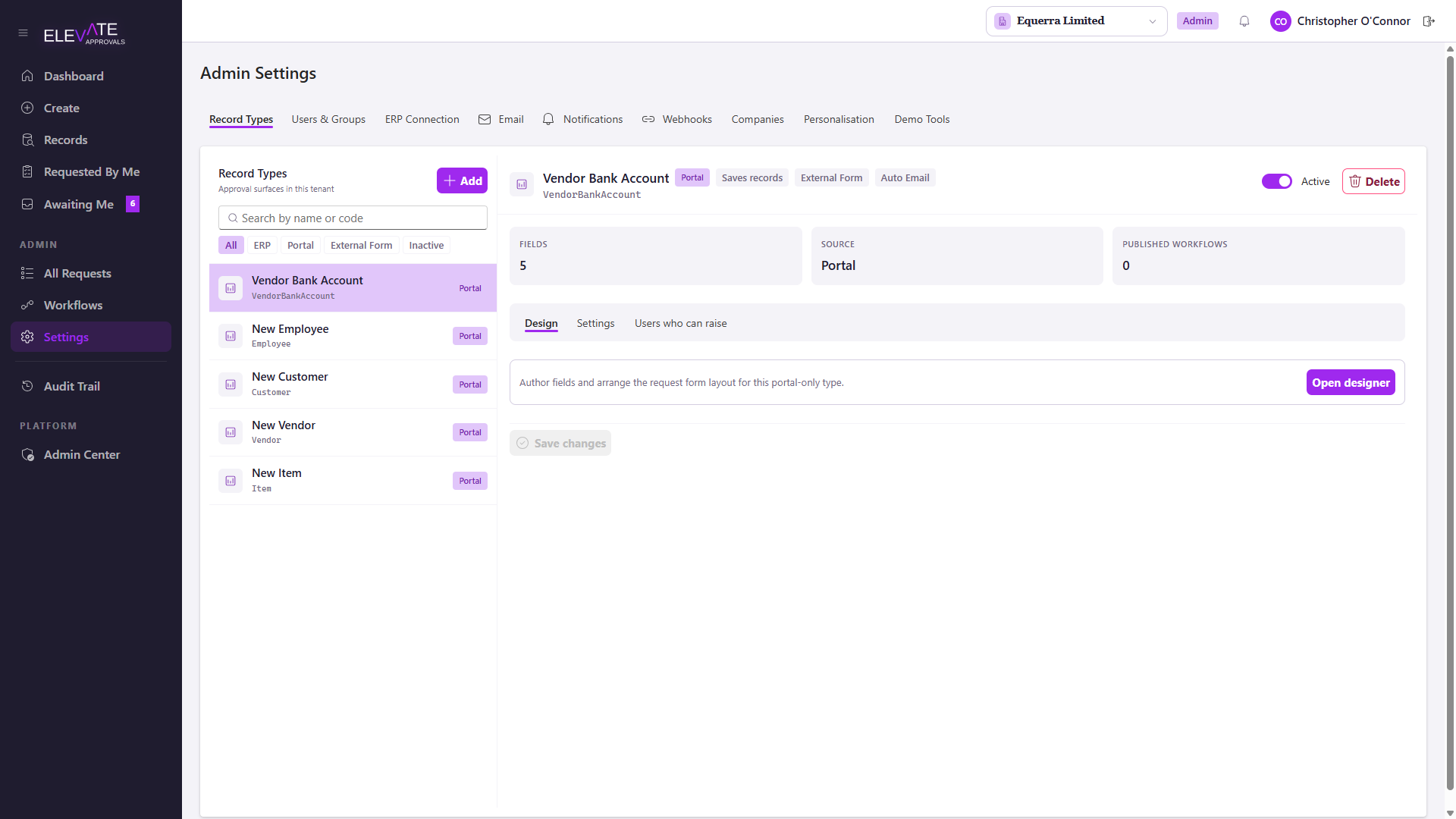
Record types are the forms users fill in. Each record type maps to one entity (vendor, customer, item, payment terms, and so on) and has its own set of fields, validation rules and layout.
Create a record type
In Settings > Record Types, choose New record type. Give it a name, choose whether it is BC-backed (synced from Business Central) or portal-only, and choose its target entity.
Add fields
Open the record type and choose Edit. The Edit Record Type page combines field authoring and form layout in one place. See Record Type Designer for the full editing surface.
For each field set:
- Field key: the camelCase identifier the API stores, for example
vendorName. - Label: the user-facing label.
- Field type: Text, Number, Select, Date, File, Email, Phone, Textarea or Boolean.
- Required: whether the field must be filled in before submit.
- Validation: minimum and maximum length, regex, allowed file types, max file size.
- Visibility: hide for some roles, or hide from external (vendor) submitters.
- Duplicate match strategy: how strictly this field is checked when looking for existing records that may already exist in BC. Options are None, Exact Definitive, Exact High, Normalized Name and Contains. Select fields are always skipped for duplicate matching because their values are not unique enough to identify a record.
Layout
Drag fields between sections, arrange them into rows. The layout is what end users see on Create. Fields that come from Business Central are flagged with a small badge and cannot be edited from the portal.
Lookups
Lookup fields (for example "Currency Code") read their option list from the lookup cache. The cache is populated by the BC connector. If you do not see options, ask a BC administrator to push the relevant lookup source from BC; see Field Configuration.