Designing Workflows
The Workflow Builder is a paid add-on to Elevate Approvals. If your tenant has not subscribed, the Workflows entry in the sidebar is shown locked and the editor is unavailable. Contact Equerra to enable it.
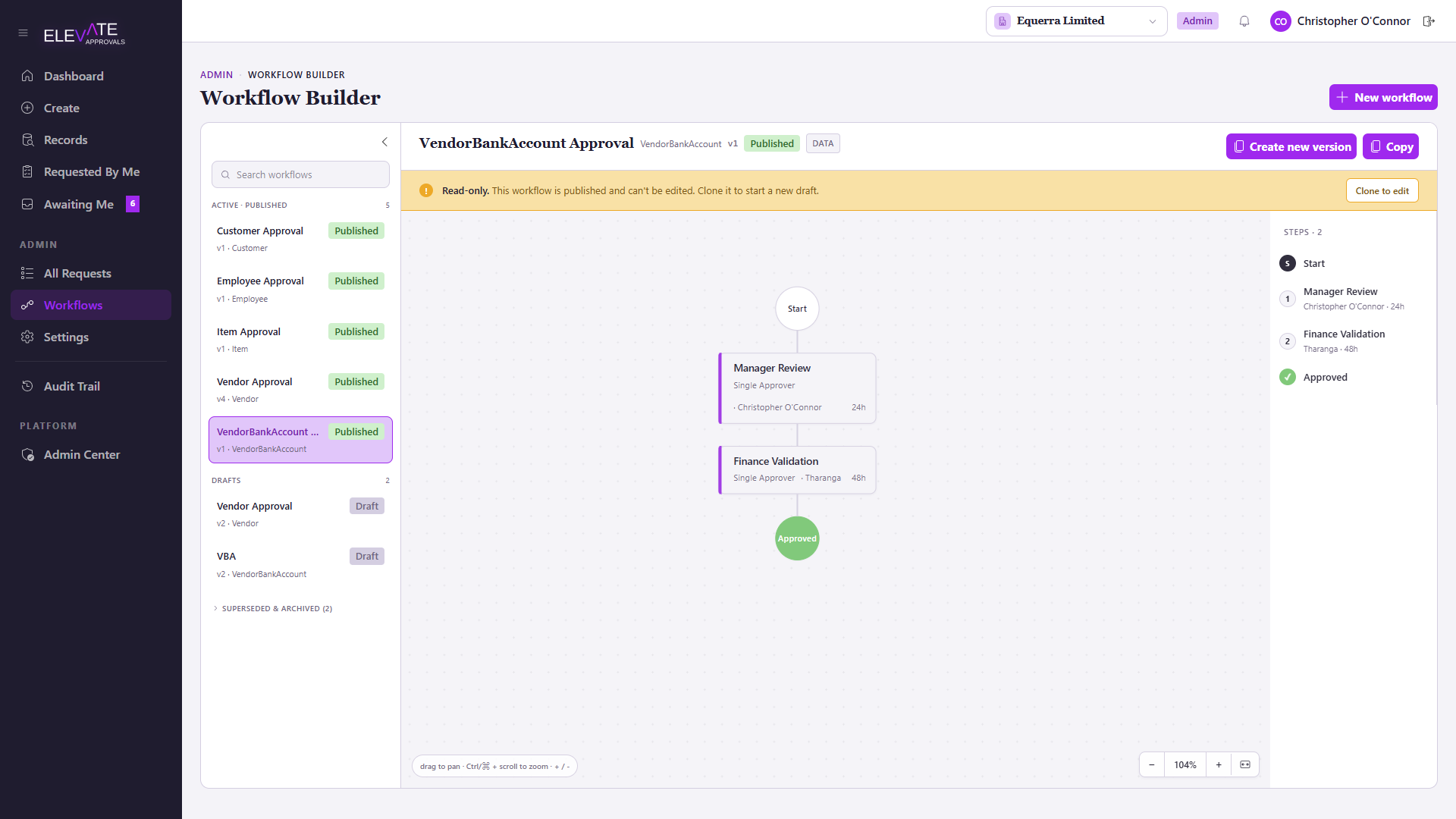
Workflows live under Admin > Workflows rather than the Settings tabs. A workflow defines the chain of steps a request passes through after submission and before final approval.
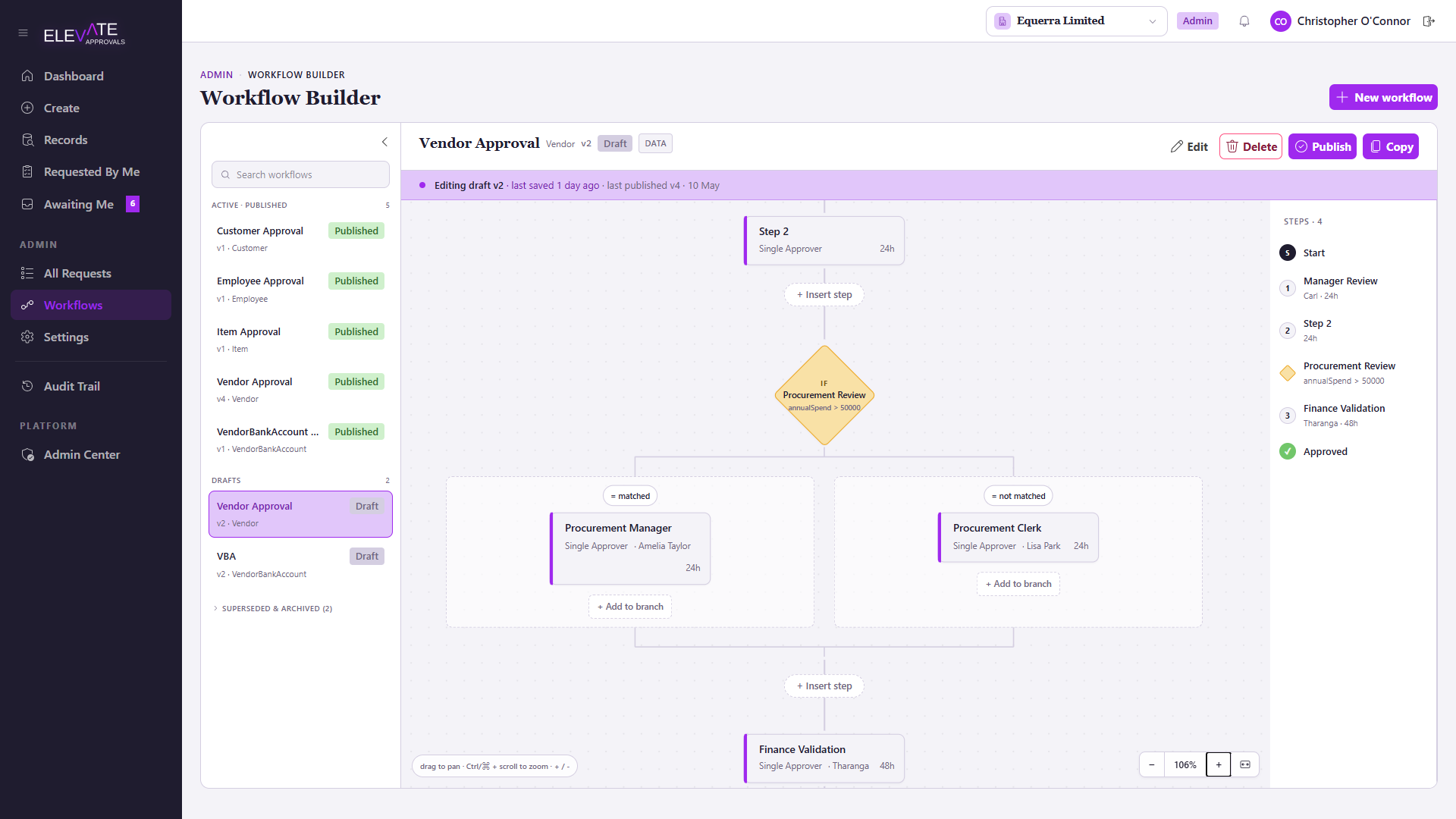
- Canvas
- Step editor
Lifecycle
Workflows have four states: Draft, Published, Superseded and Archived.
Only Published workflows are picked up by the engine. Editing a published workflow creates a new draft; once you publish it, the previous version is automatically marked Superseded so historical requests still reference the version they were submitted against.
Step types
The Step editor lets you pick from the following step types. The publish step refuses any other type, so unsupported step types cannot accidentally go live.
| Step | Behaviour |
|---|---|
| Single Approver | One named approver, chosen with the user picker. Their decision advances the request. |
| Group (Quorum) | A group of approvers. The step advances once Approvers needed distinct approvals are recorded. Set it to 1 for "first response wins"; set it to 2 (or more) for a multi-approver quorum. Rejections needed is independent and defaults to any single rejection killing the step. A quorum count alone does not guarantee separation of duties; see Four-eyes approval below. |
| Group: All must approve | A group of approvers. Every member of the group must approve before the step advances. |
| Conditional | Branches into matched and not-matched children based on field-value conditions. Both branches rejoin at the next root sibling. |
| Field-Routed | A real approver step whose approver is resolved at step-open time from a request field, using first-match-wins rules and a fallback action (use a default user, reject, or escalate). |
Conditional and Field-Routed are gated behind a per-tenant flag. If you do not see them in the editor, ask Equerra to enable them on your tenant.
Four-eyes approval
There is no dedicated "Four Eyes" step type. Turn on Block self-approval under Settings > Users & Groups: the engine then enforces that the requester is never an approver, across every step type.
- Single Approver: if the named approver is the requester, the engine redirects the step to that user's configured backup approver. Submissions are refused at submit time when no backup is configured.
- Group (Quorum): the requester does not count toward the quorum even if they are in the group. For a true four-eyes outcome, set Approvers needed to 2 and make sure the group has at least one more member than the quorum, for example 3 members for a 2-approver quorum, so the request does not stall.
- Group: All must approve: the same exclusion applies; the requester is skipped over and the remaining members must all approve.
Without Block self-approval turned on, the requester can count as one of the approvers if they are a group member or are named as the single approver. The tenant flag is what makes approvals genuinely independent.
Backup approvers (Users & Groups > Backup approver) only apply to Single Approver steps. They are ignored for Group steps: Group quorum and Group All rely on the group having enough other eligible members.
Per-company cloning
Workflows are tenant-wide by default. If you operate multiple companies inside one tenant, the Clone to companies action on a published workflow copies it, with company-specific approver overrides, into each selected company.
Tips
- Always create a Draft copy of a workflow before changing a Published one. The engine snapshots the workflow version onto the request, but visible changes can still confuse approvers in flight.
- Keep approval groups small. Groups with very large memberships make Group All steps brittle.
- Use Force approve sparingly. The action is recorded with a mandatory reason and surfaces prominently in the audit trail.