Reviewing and Deciding
The Awaiting Me inbox
Open Awaiting Me from the sidebar.
Requests are grouped by aging:
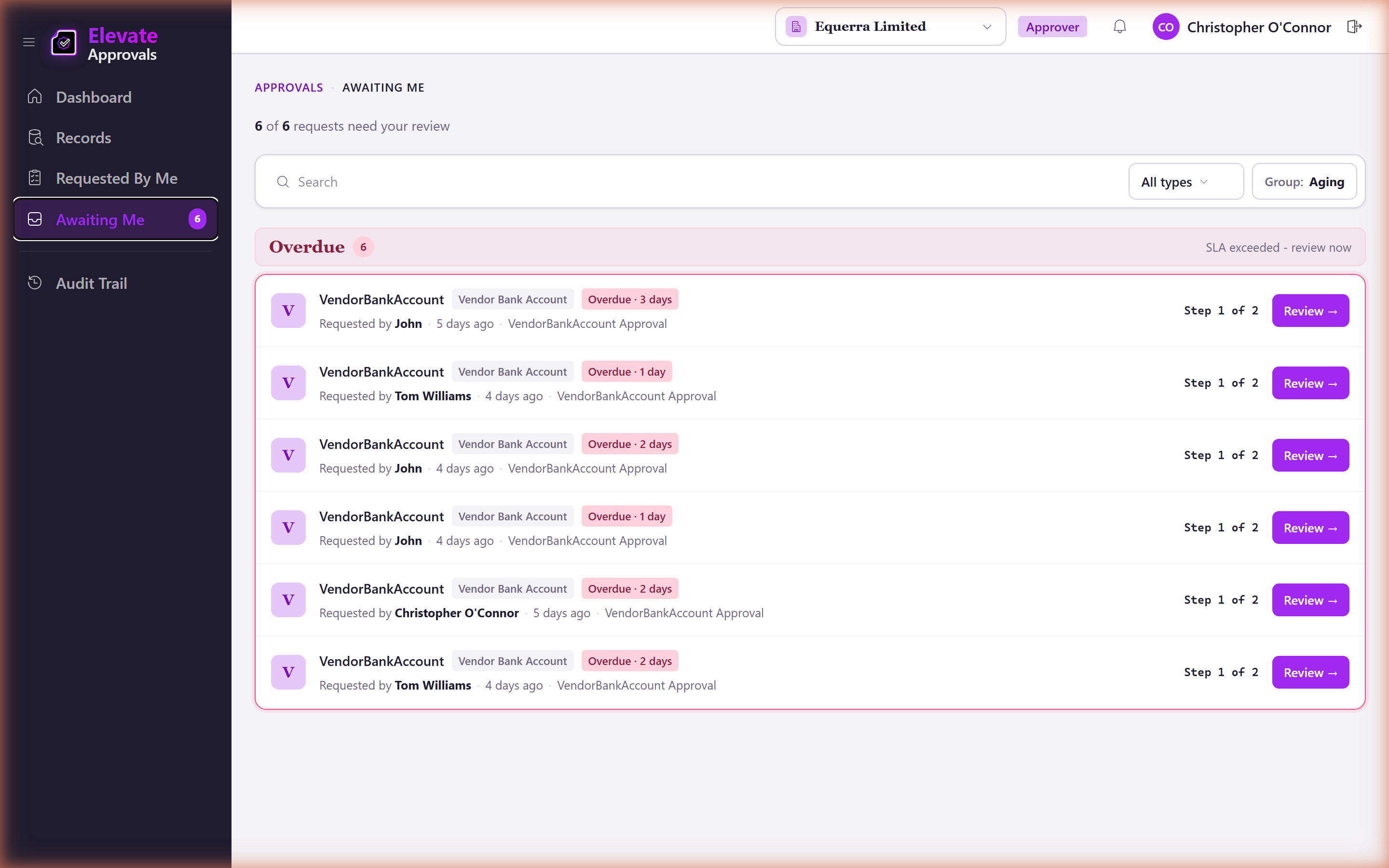
| Bucket | Meaning |
|---|---|
| Overdue | The current step's SLA has passed. Shown in red. |
| Today | Due today. Shown in amber. |
| This week | Due in the next seven days. |
| Older | Submitted more than seven days ago and still waiting. |
Each row shows the request name, the requester, the current step ("Step 2 of 4"), the assignee or group, and how long ago it was submitted. Choose Review to open the full request.
If your administrator has enabled the feature flag, you may also see a separate Document Approvals inbox for document-led workflows.
Reviewing a request
The review screen has three areas:
- Header: the request name, type, requester and current status.
- Form: the values the requester submitted, plus any uploaded documents. Click a document to open a short-lived secure download link.
- Workflow: a vertical timeline of the steps. The current step is highlighted, completed steps show who approved and when, future steps show who is up next.
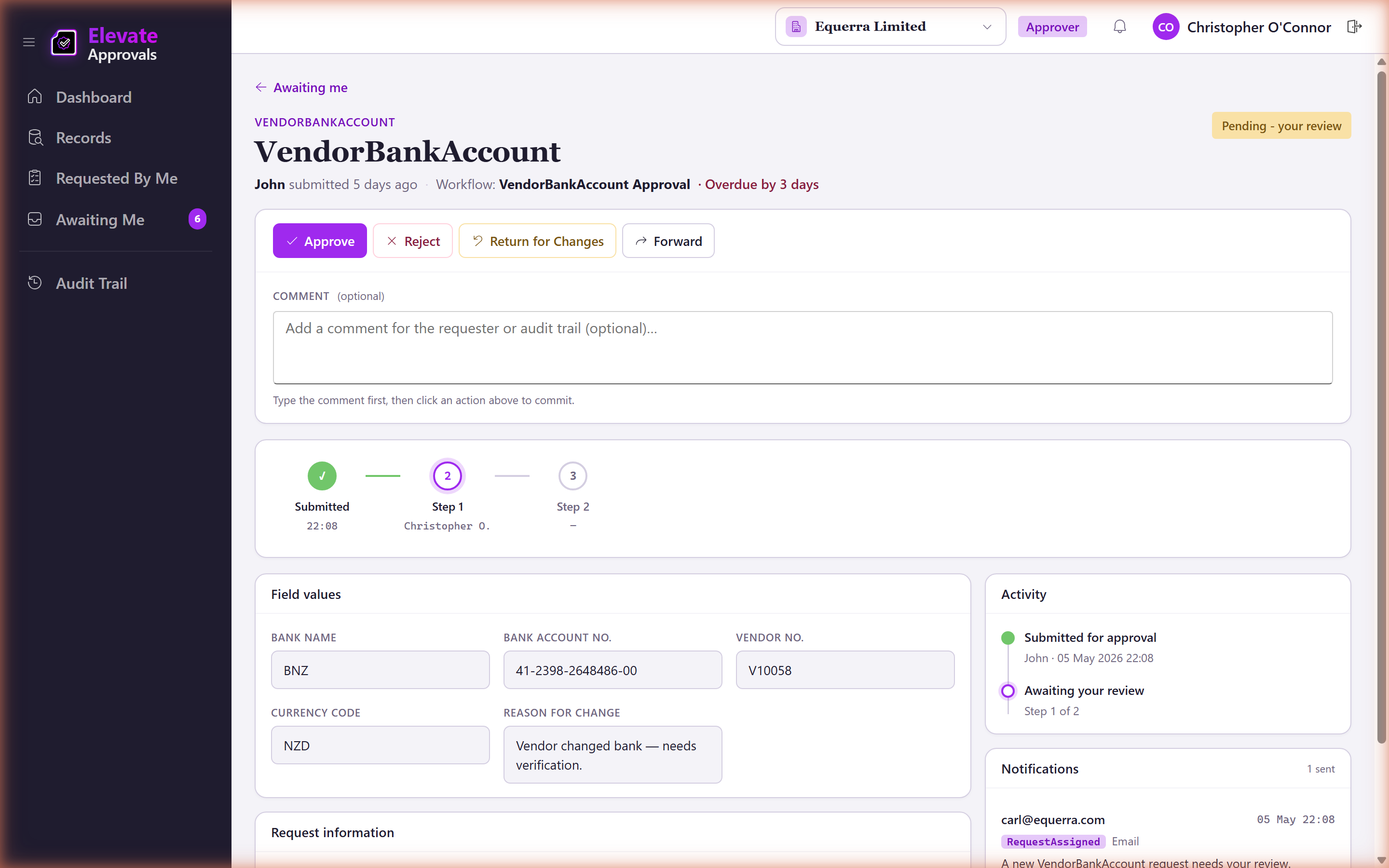
Above the form you may see warnings:
- Possible duplicate: a record with similar values already exists in Business Central. Click through to see which record and why it matched.
- External form pending: the request is waiting on a vendor or external party to fill in a tokenised form.
Making a decision
Use the action bar at the bottom of the review screen.
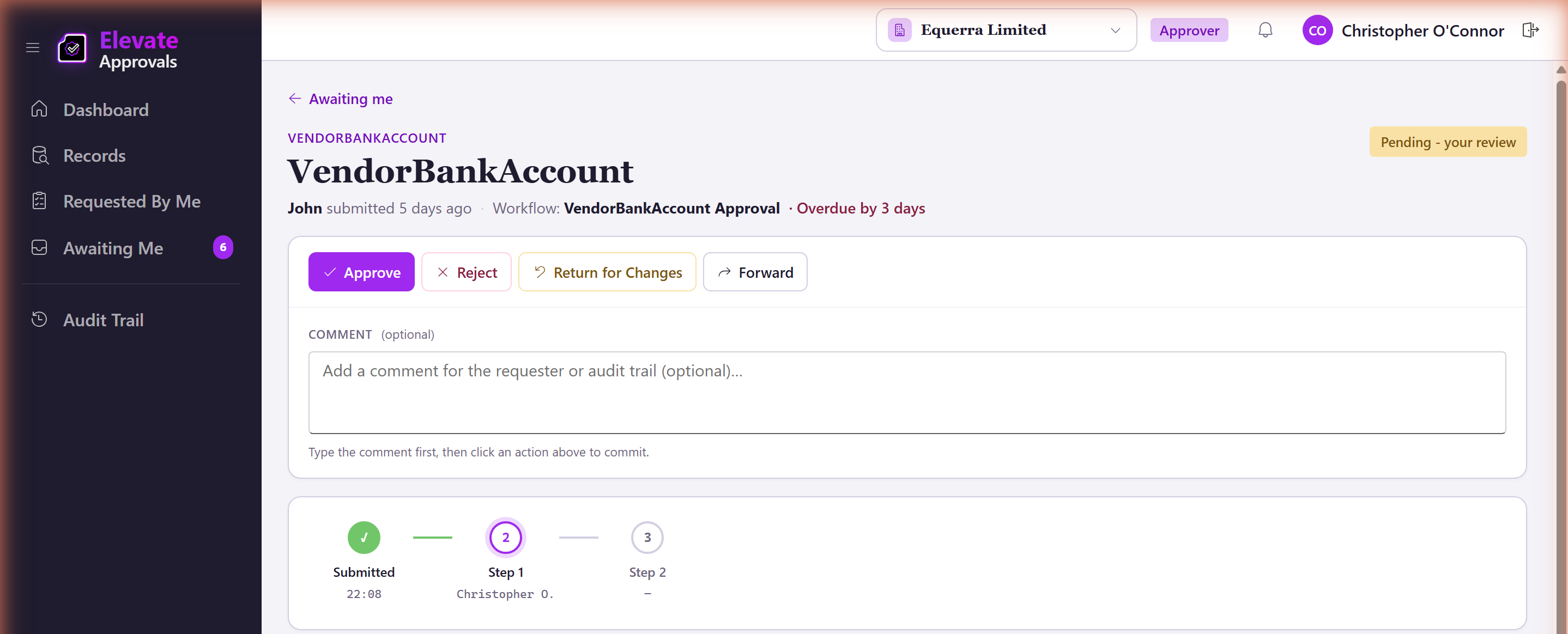
Approve
- Optional comment.
- Sends the request to the next step, or finalises it if you are the last approver.
- On finalisation the system may write the record back to Business Central and publish a webhook event. You do not need to do anything for those to happen.
Reject
- A comment is required. The reject action will not work without one.
- Rejection ends the request. The requester is notified and the audit log captures your reason.
Return
- Optional comment, but please leave one so the requester knows what to fix.
- Returning sends the request back to the requester for edits. They can resubmit; when they do, it usually comes back to you.
Forward
- A reason is required.
- Pick another user to send the request to. They become the new assignee for the current step. Use this when the request landed on you in error or when someone else has the better context.
Force approve (Admin only)
If you also hold the Admin role, you can force-approve a request that is stuck. This bypasses remaining steps. A reason is required and the action is recorded prominently in the audit trail.
Group steps
- Group First: any member of an approval group can decide; first response wins.
- Group All: every member must approve.
The review screen tells you which type you are looking at.