Email Cleanup
The Email Cleanup action permanently deletes sent and outbox email log entries based on a date range and filter you supply. It keeps the environment clean and helps with performance on tenants that send a lot of email.
User Guide
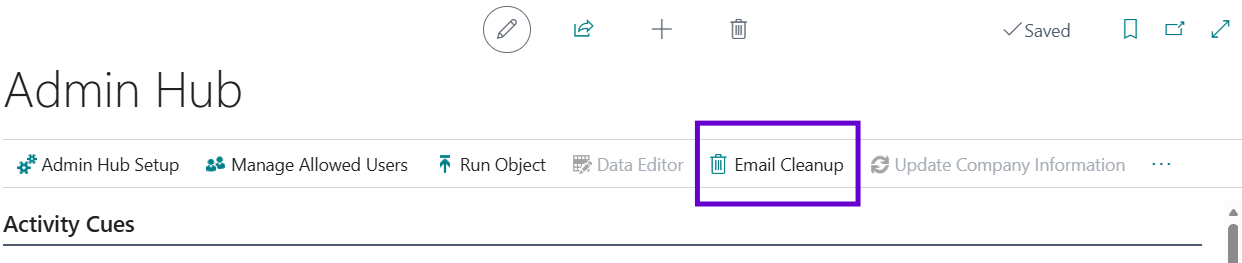
- Open the Admin Hub in Business Central.
- In the ribbon, click the Email Cleanup action.
- On the request page, set a date filter to specify which records should be deleted.
Date filter syntax
| Syntax | Description |
|---|---|
| 30D | 30 days |
| 2W | Two weeks |
| CM+10D | Current month plus 10 days |
| CM+1M | Current month plus one month |
| CQ+1M+20D | Current quarter plus one month plus 20 days |
| CW+1W | Current week plus one week |
| D15 | On the 15th of each month |
- Choose which categories to clean up:
- Failed Email Outbox Entries — emails that failed to send (still in the outbox), filtered by date.
- Sent Email Entries — successfully sent emails, filtered by date.
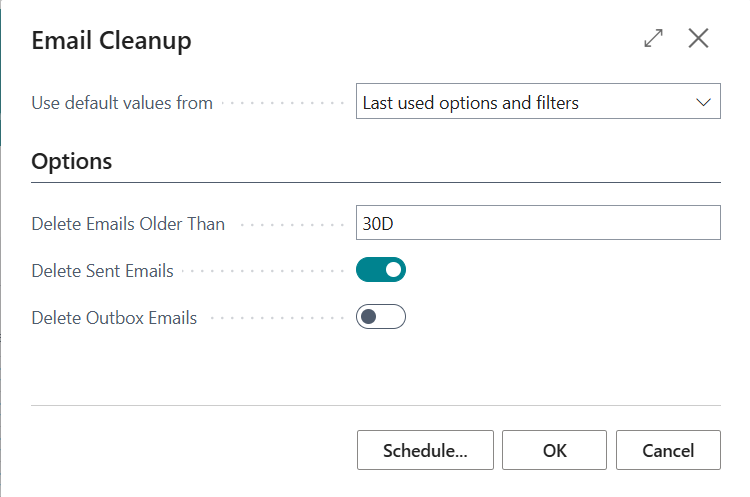
- Click OK to run the cleanup. The system deletes the matching email records.
Important: Deletion is permanent and cannot be undone. Run a small filter first to confirm the scope before applying it broadly.
Notes
- It is good practice to clean up old or failed emails on a regular cadence to keep the system performant.
- If the report reports nothing was deleted, verify that Delete Emails Older Than is set (e.g. 30D, 1M, 1Y) and that at least one of Delete Sent Emails or Delete Outbox Emails is enabled.
- Only users with appropriate permissions on the email log tables can run Email Cleanup.