Data Editor
The Data Editor is the table-editing tool inside Elevate Admin. It loads any table into a working grid (or runs against the filter without loading) so administrators can review, edit, insert, import, export, sort or delete records — with optional validation bypass and a full audit trail.
Important: Data Editor actions are restricted to users on the Allowed Users list. The Admin Hub disables the Review and Edit and Bulk Update buttons for everyone else.
Modes
The Data Editor has two modes, both launched from the Admin Hub:
- Review and Edit — loads filtered records into a staging grid where you change them one row at a time.
- Bulk Update — runs an action (Update Column, Copy Column to Column, Find & Replace) against the filter without loading the records first. Useful when there are too many rows for a grid to be practical.
Setup
Before first use, configure the system-wide settings on the Data Editor Setup card.
- Search for Data Editor Setup and open the card.
- Set the fields below.
- Close the page — settings are saved automatically.
Data Editor Setup card
| Field | Description |
|---|---|
| Enable Data Editor Log | Records every change made through the Data Editor (Insert, Modify, Delete, Rename, Truncate, Delete All) in the Data Editor Log. Logging captures old/new values and may slow bulk operations. |
| Number of Threads | How many parallel background sessions are used when Read in Parallel is enabled on the Data Editor (range 2–8). Higher values speed up loading large tables but consume more server resources. |
Tip: Turn the audit log on before any sensitive operation, especially bulk deletes or Without Validation updates.
Data Editor Dialog — field reference
The Data Editor entry dialog opens from Review and Edit or Bulk Update. Some groups appear only in one mode.
Presets
| Field | Description |
|---|---|
| Preset | Code of a saved query preset to load source table, filters and options from. Use the lookup to pick an existing preset, or type a new code to create one. |
| Preset Name | Read-only descriptive name of the selected preset. |
| Save Preset | Save the current settings to the selected preset (overwrites). |
Source Table
| Field | Description |
|---|---|
| Source Table No. | The ID of the table to load and edit. Use the lookup to browse all tables by name. |
| Source Table Name | Read-only name of the selected source table. |
| Number Of Records | How many records currently match the table filter. |
Filters
| Field | Description |
|---|---|
| Table Filter | Drill down to define filter conditions that limit which records are loaded. |
| Field Filter | Drill down to choose which fields are visible and editable after the data is loaded. Leave empty to load all fields. |
Write Options
| Field | Description |
|---|---|
| Without Validation (Warning!) | If enabled, modifications and deletions skip standard table validation triggers (OnValidate, OnDelete). Faster but bypasses business logic. |
Loading Options (Review and Edit only)
| Field | Description |
|---|---|
| Exclude FlowField's | If enabled, FlowFields are skipped when loading data. Strongly recommended on large tables. |
| Read in Parallel | If enabled, records load in multiple parallel background sessions. Speeds up large tables but consumes more server resources. |
Edit Options (Bulk Update only)
| Field | Description |
|---|---|
| Update Option | Update All applies updates record by record (slower, fires triggers). Fast Update writes values without firing any triggers (faster, ignores Without Validation). |
| Records Before Commit | When updating many records, commits the transaction in batches of this size. Set to 0 to commit once at the end. Ignored when Fast Update is selected. |
Deletion Options (Review and Edit only)
| Field | Description |
|---|---|
| Delete Without Load Data | Deletes filtered data without viewing the data first. Use with caution. |
| Deletion Option | Delete All deletes records one by one (fires triggers, slower). Truncate truncates the table (no triggers, much faster). |
| Records Before Commit | Commits the transaction in batches of this size during a Delete All. Ignored when Truncate is selected. |
Important: Without Validation, Fast Update and Truncate all bypass business logic. They are powerful for sandbox prep but can cause data loss if used incorrectly. Enable the Data Editor Log before running them.
Actions
Data Editor Grid (Review and Edit)
| Action | Description |
|---|---|
| Insert new record | Captures primary-key values for a new record and inserts it into the source table. Honours the validation flag on the entry dialog. |
| Update Column | Sets the same value on a chosen column for every record currently in the grid. |
| Copy Column To Column | Copies the value of one column into another for every record in the grid. |
| Find & Replace | Opens the Find and Replace dialog to search every text and code field of the loaded records and optionally replace matches in bulk. |
| Sort | Choose a key and direction; reloads the grid in that order. |
| Refresh | Reloads records from the source table using the current filters and field selection. |
| Export Table Data | Exports the records currently loaded to a JSON or Excel file. Only the included fields are exported. |
| Import Table Data | Imports records from a JSON or Excel file into the source table. Validation behaviour and on-find action are controlled from the Import / Export dialog. |
| Delete All | Deletes every record currently shown in the grid, with confirmation. |
Bulk Update Hub
| Action | Description |
|---|---|
| Update Column | Sets the same value on a chosen column for every record matching the filter, without loading the data first. |
| Copy Column To Column | Copies one column into another across the filter, without loading. |
| Find & Replace | Search and optionally replace text across the filtered records. |
| Refresh | Recalculates how many records match the table filter. |
Find and Replace
| Action | Description |
|---|---|
| Find All | Scans the filtered records for the Find What value and lists each match below, without making any changes. |
| Find & Replace All | Scans and replaces each match with the Replace With value. Runs with or without validation depending on the Data Editor setting that opened the dialog. |
Data Editor Presets
| Action | Description |
|---|---|
| Show Json | Displays the raw JSON payload of the selected preset. |
| Import Json | Imports preset settings from a JSON file, overwriting the current contents after confirmation. |
| Export Json | Exports the saved settings of the selected preset to a JSON file. |
Data Editor Log
| Action | Description |
|---|---|
| Show Old Value | Opens a message window with the complete value the field held before the change. Use when the Old Value column is too long to read inline. |
| Show New Value | Opens a message window with the complete value after the change. |
Example — Bulk-clear a flag on every Customer in test data
- From the Admin Hub, choose Bulk Update.
- On the Data Editor dialog:
- Set Source Table No. to the Customer table (lookup by name).
- Drill down on Table Filter and define your filter conditions.
- Leave Without Validation off if you want OnModify/OnValidate triggers to fire.
- Choose Update All with a sensible Records Before Commit (e.g. 500).
- Click OK. The Bulk Update Hub opens.
- Choose Update Column, pick the field and value, confirm.
- Watch the row count update; close the page when done.
Example — Audit recent edits
- Open Data Editor Setup and set Enable Data Editor Log to Yes.
- Run any Data Editor action.
- Open Data Editor Log (search, or from Data Editor Setup) to review every Insert, Modify, Delete, Rename, Truncate or Delete All — including who, when, the table, the field and the old/new values.
- Use Show Old Value / Show New Value to read long values that don't fit inline.
Sharing presets between environments
- On the Data Editor dialog, save your settings to a preset code.
- Open Data Editor Presets and choose Export Json.
- In the target environment, create a preset with the same code and use Import Json.
Equerra Enhancements
The Data Editor in Elevate Admin extends the original by allowing filtered data to be deleted without first loading it into the grid. This is useful for bulk deletions when the dataset is too large to stage.
How to Use
-
Open the Data Editor and select your table and filters as usual.
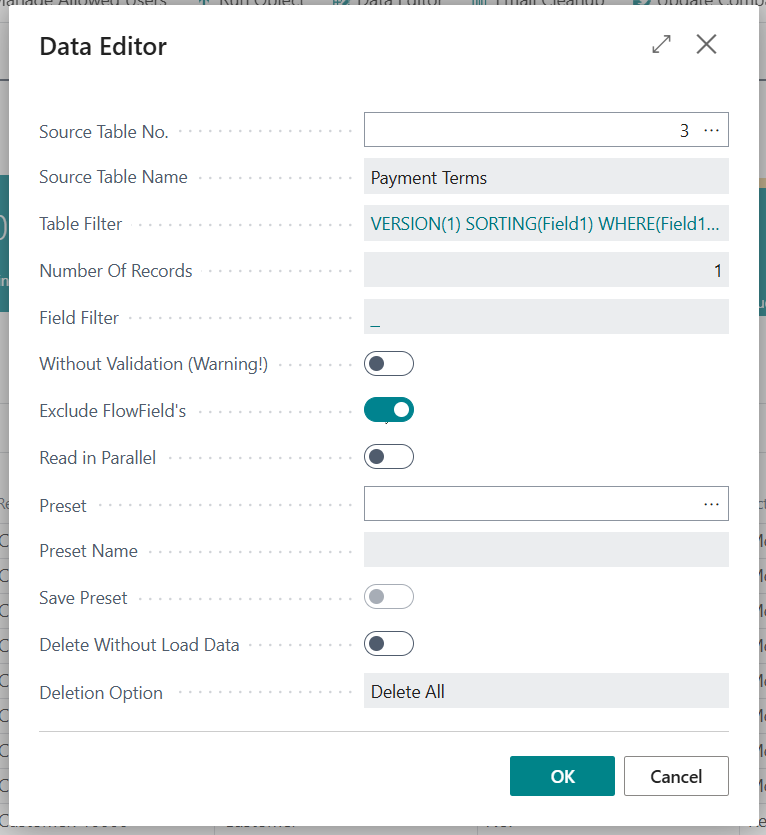
-
Enable the Delete Without Load Data option.
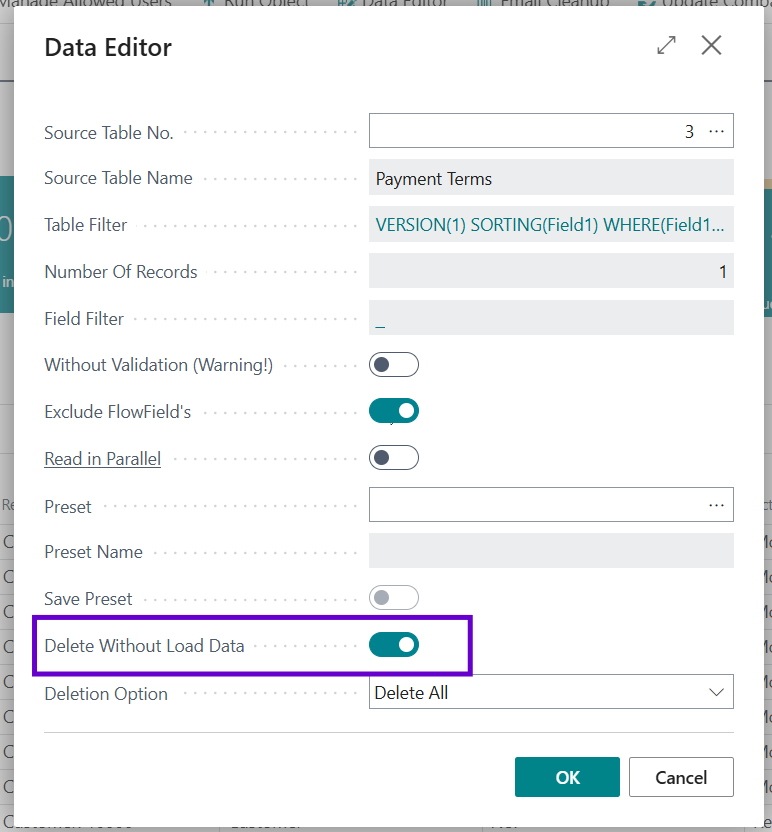
-
Choose a Deletion Option (only enabled when Delete Without Load Data is on):
- Delete All — deletes records one by one (triggers validations / events, but slower).
- Truncate — deletes all records instantly (very fast, but does not trigger validations / events; use with caution).
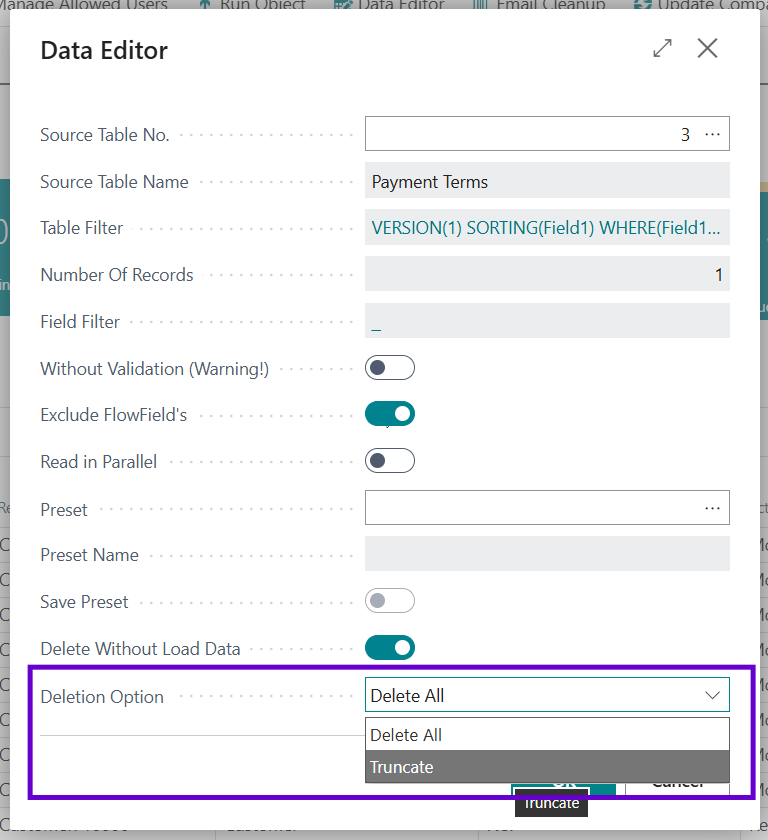
-
Confirm the deletion when prompted.
-
If the data editor log is enabled, log entries are generated:
- Truncate → 1 entry showing the filter used.
- Delete All with Records Before Commit = 0 → 1 entry showing the filter.
- Delete All with Records Before Commit > 0 → 1 entry per record deleted.
Warning: Truncate is irreversible and bypasses all validations. Only use it if you are certain.
This feature is intended for advanced users and administrators who need to quickly clear large datasets.
Troubleshooting
| Issue | Resolution |
|---|---|
| Data Editor buttons are disabled. | You are not on the Allowed Users list. Have an existing admin add you via Manage Allowed Users. |
| Data Editor Log is empty even after editing data. | Open Data Editor Setup and set Enable Data Editor Log to Yes. Logging is off by default. |
| The Data Editor takes a long time to load a large table. | Enable Read in Parallel, leave Exclude FlowField's on, and consider narrowing the Table Filter or Field Filter. The thread count is set on Data Editor Setup (2–8). |
| "Inserting the primary key for >15 values is not supported." | The insert dialog supports up to 15 primary-key fields. For tables with more, insert via the source-table page directly. |
License
The original Data Editor functionality is licensed under the MIT License.
For information about third-party software and licenses used in this project, see the Third-Party Notices file.