Elevate Operations
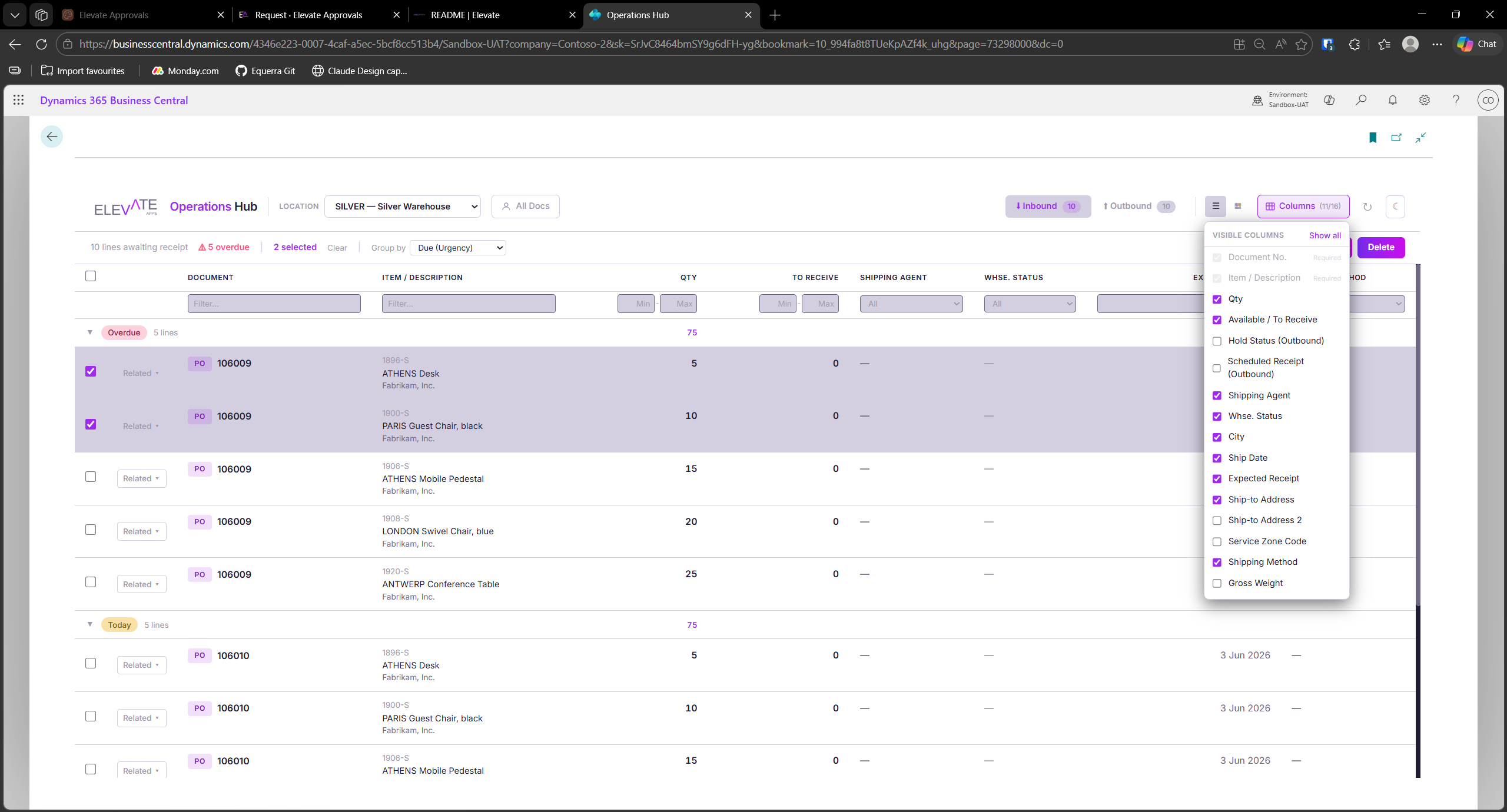
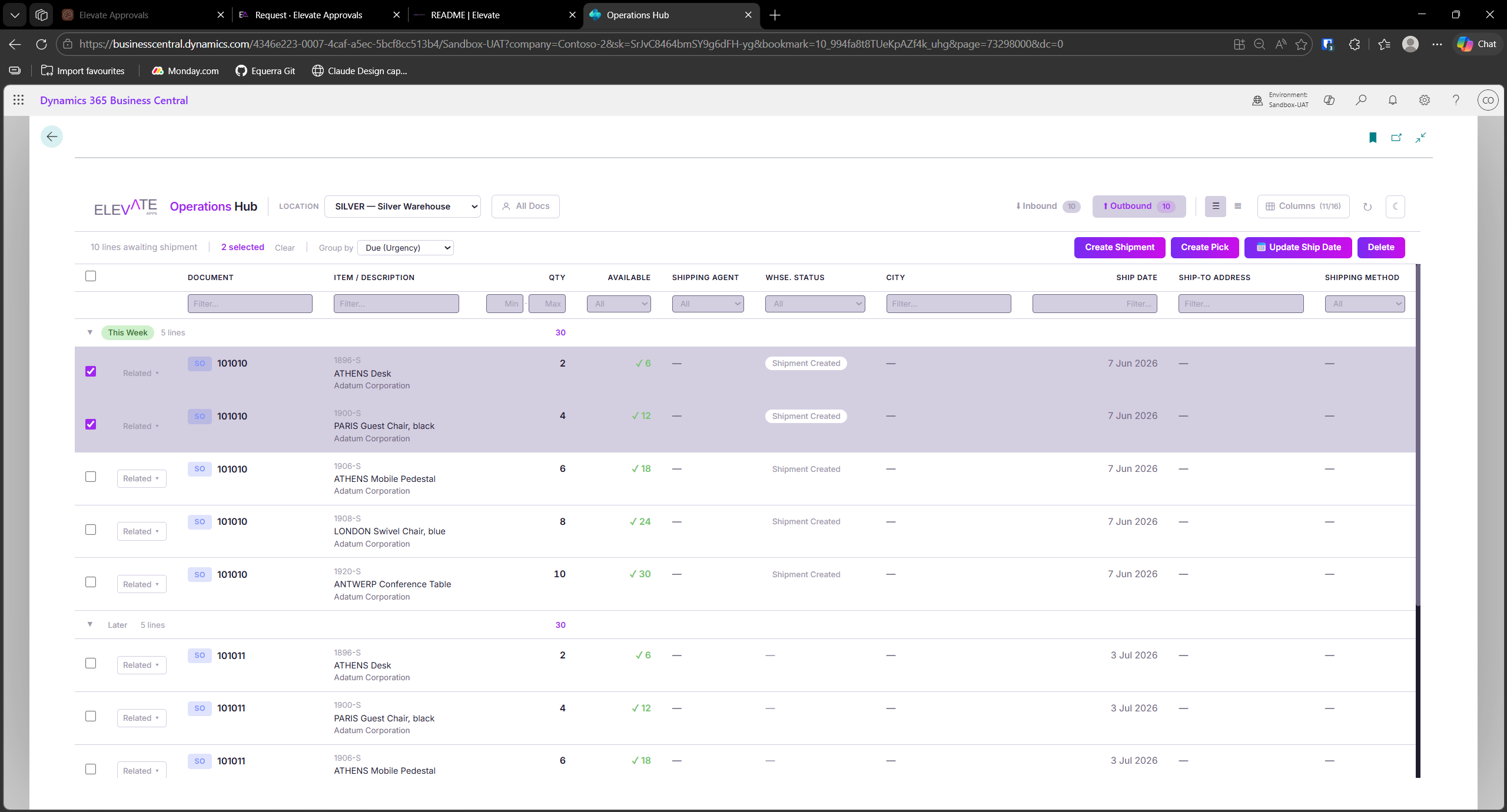
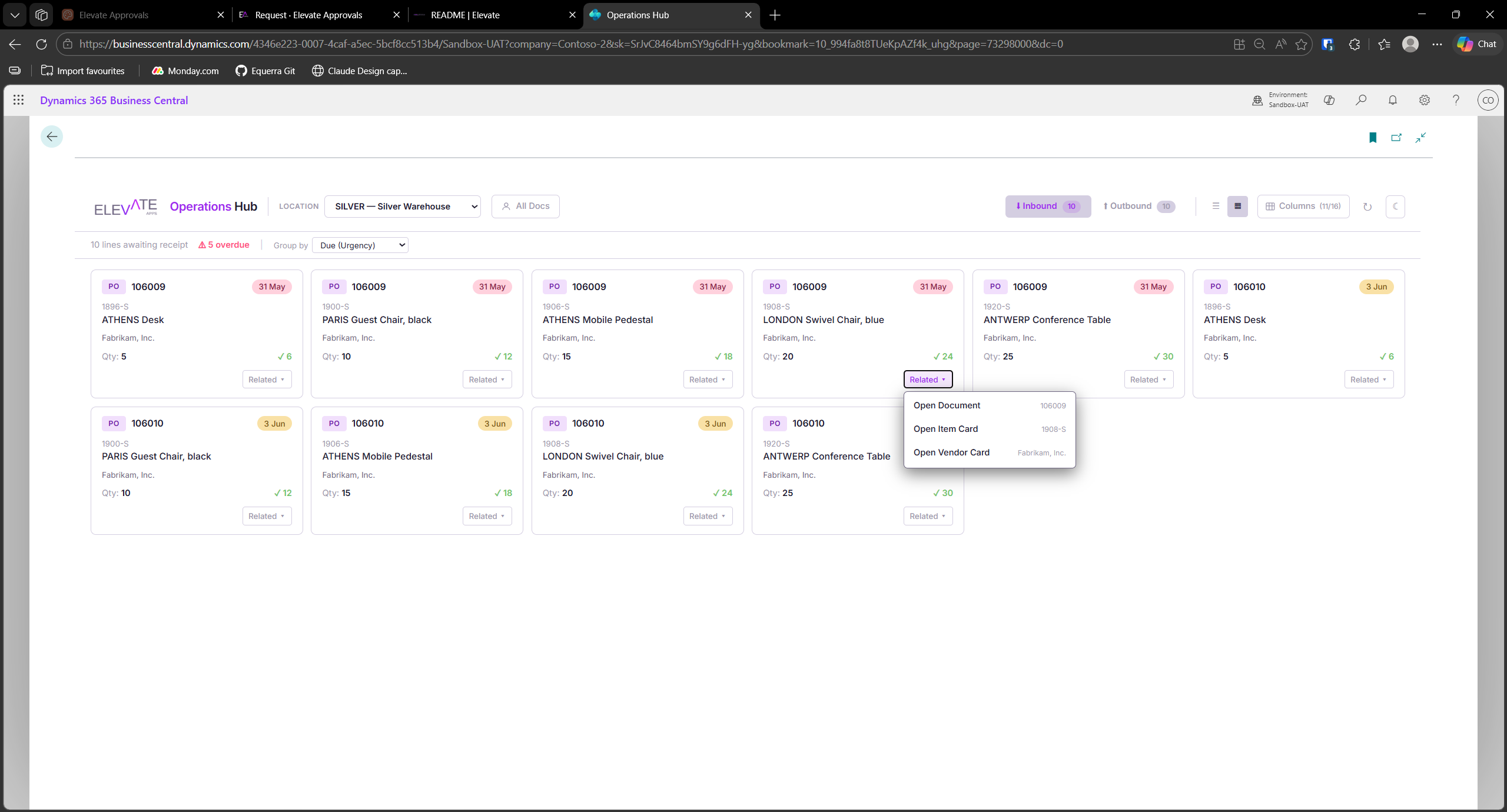
Tip: Swipe or scroll the strip above to switch between the Inbound and Outbound views of the Operations Hub.
Overview
Elevate Operations is a Business Central extension by Equerra Limited that provides a modern, real-time warehouse operations dashboard. It consolidates all outstanding inbound and outbound document lines into a single interactive view, giving warehouse teams instant visibility of what needs to be received, shipped, or picked at each location.
Key Benefits
- Single-screen visibility of all pending purchase orders, sales orders, transfer orders, and return orders filtered by warehouse location.
- Real-time item availability with colour-coded statuses (Available, Partial, Unavailable) so you can spot shortages before they cause delays.
- Urgency indicators that automatically flag overdue, due-today, due-this-week, and later lines.
- One-click warehouse actions to create warehouse receipts, shipments, and picks directly from the hub without navigating to each source document.
- Bulk shipment date updates to change the shipment date on multiple outbound lines at once.
- Hold and QC hold tracking that deducts held quantities from available inventory, ensuring the numbers you see reflect truly releasable stock.
- Navigate to source to jump directly to the underlying purchase order, sales order, or transfer order.
Feature Guides
- Change Log - version history and release notes.
- Stock on Hand - live stock on hand by Bin, Lot, or Bin and Lot, with FactBox detail and navigation to related records.
Note: Additional feature guides will be added to this folder as the extension evolves. Check back for updates.
Key Concepts
| Concept | Description |
|---|---|
| Direction | Whether a document line represents goods coming in (Inbound) or going out (Outbound) of a location. |
| Source Type | The kind of document the line originates from: Purchase, Sales, Transfer, Sales Return, or Purchase Return. |
| Availability Status | A colour-coded indicator showing whether enough inventory exists to fulfil the line: Available, Partial, or Unavailable. |
| Urgency | A time-based priority calculated from the expected date: Overdue, Today, This Week, or Later. |
| Hold Status | Indicates whether inventory is subject to a general hold, a quality-control (QC) hold, both (Mixed), or None. Held quantities are subtracted from available inventory. |
| Qty. Outstanding | The quantity on the source document line that has not yet been received or shipped. |
| Qty. to Handle | The quantity currently set to receive, ship, or return on the source document line. |
| Warehouse Document Status | Shows whether a warehouse receipt, shipment, or pick already exists for a given source line. |
| Warehouse Employee | A standard Business Central setup record that links a user to one or more locations. The Operations Hub uses this to determine which locations a user can see. |
How It Works
- When you open the Operations Hub page, the extension identifies your assigned warehouse locations using your Warehouse Employee setup. Your default location is selected automatically.
- The hub scans all released purchase order lines, sales order lines, transfer order lines, sales return order lines, and purchase return order lines with outstanding quantities at the selected location.
- For each line, the extension calculates real-time item availability at that location (factoring in scheduled receipts, gross requirements, and any hold or QC hold quantities).
- Each line is assigned an Urgency level based on how its expected date compares to today's date.
- The data is presented in an interactive React-based dashboard embedded within Business Central, grouped by direction (Inbound / Outbound).
- You can select one or more lines and perform warehouse actions (create receipt, create shipment, create pick, update shipment date, or delete lines) directly from the dashboard.
- Changing the location dropdown refreshes all data for the newly selected location. You can also manually refresh at any time.
Pages Reference
| Page | Type | Description |
|---|---|---|
| Operations Hub | Card | The main dashboard page that displays all outstanding inbound and outbound document lines for a selected warehouse location, with actions to create warehouse documents. |
| Stock on Hand | List | A live, on-demand view of quantity on hand grouped by Bin, by Lot, or by both, with FactBox detail and navigation to related records. See the Stock on Hand guide. Off by default; enabled on the Operations Hub Setup page. |
Fields Added to Standard Pages
This extension does not add fields to any standard Business Central pages.
Permissions
This extension does not include a custom permission set. Users require the standard Business Central permissions for the following objects to use the Operations Hub effectively:
| Object Type | Object | Access Required |
|---|---|---|
| Page | Operations Hub | Execute |
| Table | Purchase Header / Purchase Line | Read |
| Table | Sales Header / Sales Line | Read |
| Table | Transfer Header / Transfer Line | Read |
| Table | Item | Read |
| Table | Location | Read |
| Table | Warehouse Employee | Read |
| Table | Warehouse Receipt Header / Line | Read, Insert, Modify |
| Table | Warehouse Shipment Header / Line | Read, Insert, Modify |
| Table | Warehouse Activity Line | Read, Insert |
| Table | Warehouse Request | Read |
| Table | Vendor | Read |
| Table | Customer | Read |
| Table | Shipping Agent | Read |
Important: If users cannot see the Operations Hub page or receive permission errors, ask your administrator to verify that the user's permission set includes access to the objects listed above.
FAQ
Q: How does the Operations Hub decide which location to show first? A: It uses your Warehouse Employee setup. If you have a default location assigned, that location loads automatically. Otherwise, the first location in your warehouse employee list is used. If you have no warehouse employee records, all locations are shown.
Q: Which document types appear in the hub? A: Released purchase orders, sales orders, transfer orders, sales return orders, and purchase return orders with outstanding item lines at the selected location.
Q: Why do I only see released documents? A: The hub intentionally filters to released documents only, because these are the ones ready for warehouse processing. Open or pending-approval documents are excluded.
Q: What does "Partial" availability mean? A: It means some inventory is available for the line, but not enough to fully cover the outstanding quantity. You may be able to ship or receive a partial amount.
Q: What happens when I click Create Receipt? A: The extension creates a warehouse receipt header for the location and populates it with lines from the selected source documents using the standard Business Central process. If a receipt already exists for that document, you are notified with the existing receipt number instead.
Q: Can I create a pick directly from the hub? A: Yes, for outbound sales order and transfer order lines. The extension first ensures a warehouse shipment exists (or creates one), releases it, and then creates the pick. Purchase return and sales return lines do not support pick creation from the hub.
Q: How do I update the shipment date on multiple lines at once? A: Select the outbound lines you want to update and use the Update Shipment Date action. Enter the new date and the hub will apply it to all selected sales order and transfer order lines. Lines with unsupported source types (such as returns) are skipped, and a summary message tells you how many lines were updated and how many were skipped.
Q: Why are some lines showing a hold status? A: Hold and QC hold quantities are provided by partner extensions (for example, quality management add-ons). These quantities are subtracted from the available inventory figure so you see only the truly releasable stock.
Q: What does the Delete Lines action do? A: It deletes selected source document lines (for example, sales order lines) directly. Lines that already have associated warehouse shipment or pick documents are skipped to prevent data loss. A summary message tells you how many lines were deleted and how many were skipped.
Q: Can I use the hub if I am not set up as a warehouse employee? A: Yes. If no warehouse employee records exist for your user, the hub falls back to showing all locations in the system. However, for the best experience, your administrator should assign you to the relevant locations.
Q: Does the hub update automatically? A: The hub loads data when you open it or change the location. To see the latest changes (for example, after someone else posts a receipt), use the Refresh action in the dashboard.
Q: Can I navigate from the hub to the original order? A: Yes. Use the Navigate action on any line to open the source purchase order, sales order, transfer order, or return order directly.
Troubleshooting
| Issue | Resolution |
|---|---|
| The Operations Hub page is blank or shows no data. | Verify that released documents with outstanding item quantities exist at the selected location. Check that the location dropdown shows the correct location. Use Refresh to reload. |
| "No lines selected" error when creating a receipt or shipment. | Select at least one line in the hub before choosing the warehouse action. |
| "Could not determine location from source document" error. | The source document header may be missing a location code. Open the source document and confirm the Location Code field is populated. |
| "No receipt lines created" or "No shipment lines created" message. | The source document may not have a warehouse request (it must be released), or lines already exist on another warehouse document. Check the Whse. Document Status column in the hub for existing documents. |
| "Create Pick is not supported for source type" error. | Pick creation is only available for sales orders and transfer orders. Purchase returns and sales returns cannot generate picks from the hub. |
| Permission error when opening the Operations Hub. | Your user does not have the required permissions. Ask your administrator to grant read access to the relevant tables (Purchase, Sales, Transfer, Item, Location, Warehouse Employee) and execute access to the Operations Hub page. |
| Location dropdown is empty. | No locations exist in the system, or you do not have warehouse employee records and no locations are set up. Ask your administrator to configure locations and assign you as a warehouse employee. |
| Availability shows "Unavailable" but you know stock exists. | Hold or QC hold quantities may be reducing the available figure. Check the Qty. On Hold and Qty. On QC Hold columns. Also verify that the item's inventory is at the correct location. |
| "Warehouse Shipment could not be released" error when creating a pick. | The shipment may have validation issues (for example, missing bin codes or incomplete setup). Open the warehouse shipment directly and resolve any errors before retrying the pick. |
| Deleted lines count does not match expected. | Lines with existing warehouse shipments or picks are automatically skipped during deletion to protect in-progress warehouse work. The summary message shows both deleted and skipped counts. |
| "Invalid shipment date" error when updating shipment dates. | The date entered may be blank or in an invalid format. Ensure you provide a valid date. Some source types (such as returns) do not support shipment date updates and will be skipped. |