Sending Ad-hoc Emails to Customers and Vendors
In addition to automated attachment emails triggered by document posting, Elevate Attachments adds a Send Email with Attachments action to the Customer List, Customer Card, and Vendor List pages. This lets you send a standalone email with generated and file attachments at any time — independently of any document workflow.
Setting a Default Attachment Group on a Customer or Vendor
You can pre-configure which Attachment Group is used when sending ad-hoc emails from a customer or vendor record:
- Open the Customer Card or Vendor Card.
- Locate the new Attachment Group Code field added (positioned after the E-Mail field).
- Set the field to the desired Attachment Group Code.
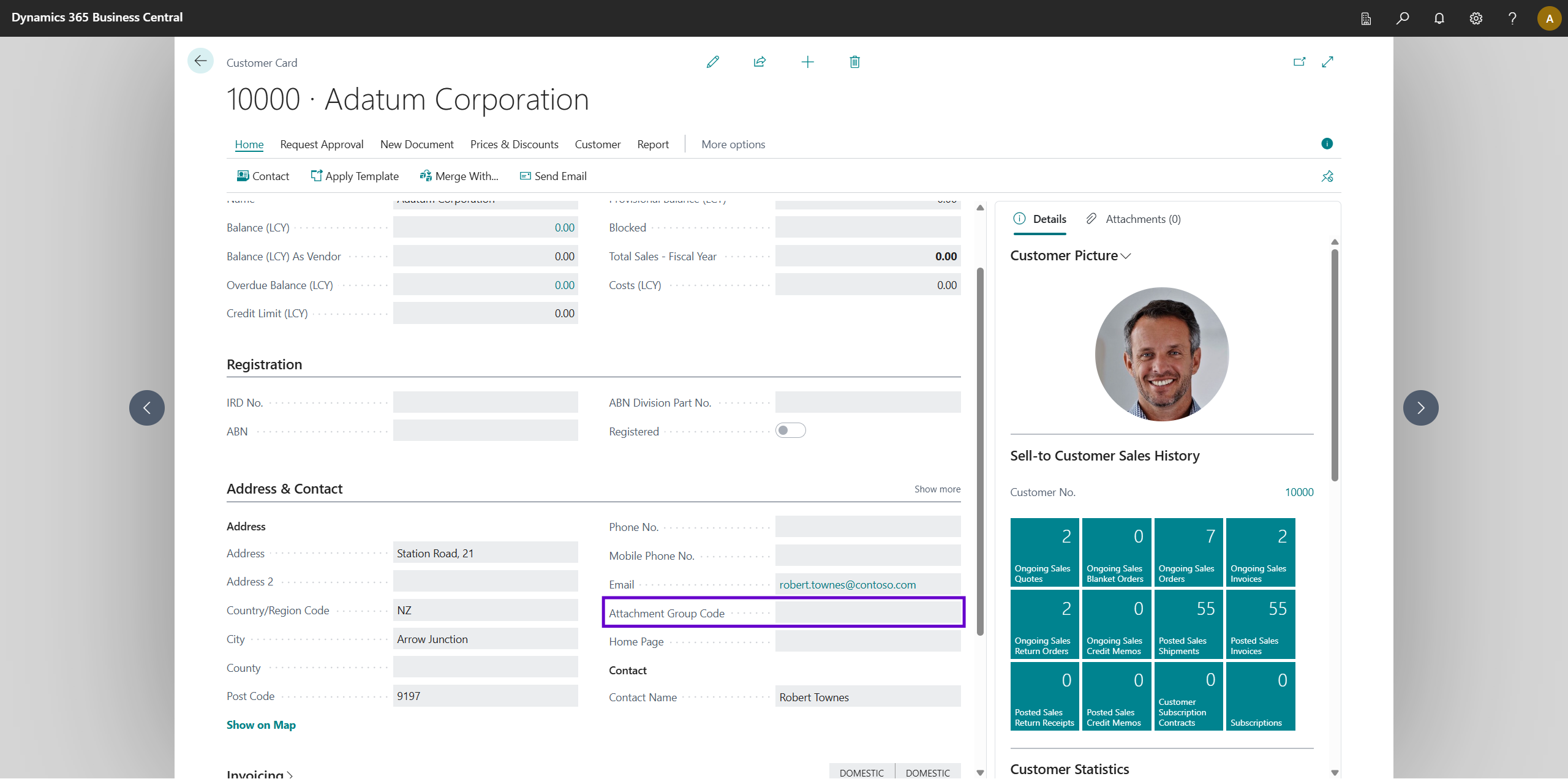
When the Send Email with Attachments action is used, this code is picked up automatically.
Using the Action
- From the Customer List or Customer Card (or Vendor List), select the customer or vendor.
- In the action bar, click Send Email with Attachments.
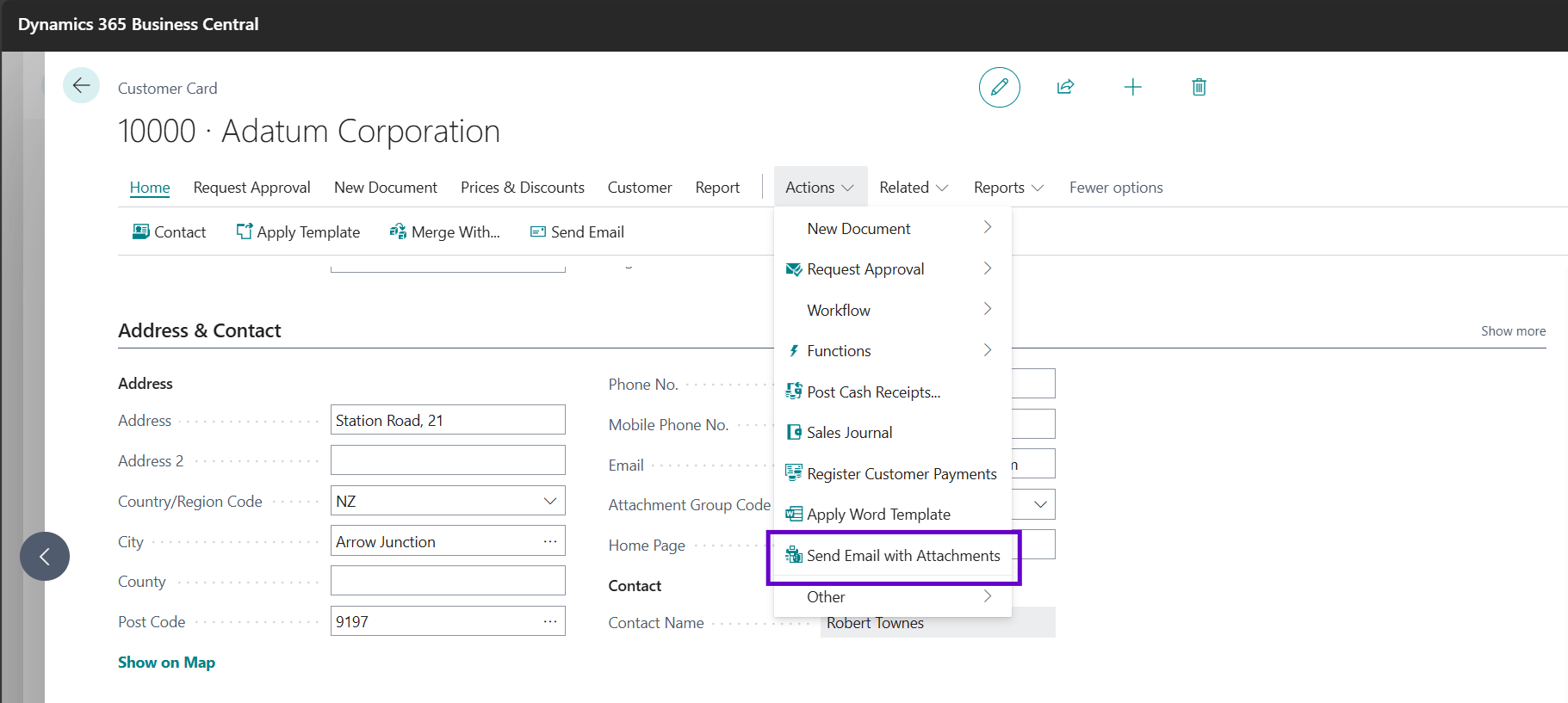
- If the record has an Attachment Group Code set, that group is used. If no code is set, the action does nothing — set an Attachment Group Code on the record first.
- An email is composed addressed to the record's E-Mail address, with all report layouts, file attachments, and generated attachments from the Attachment Group included.
- The record's No. is automatically used as the
{No.}token value for any runtime filters configured on generated attachments in the group.