Attachment Generation Templates
Attachment Generation Templates allow you to define structured, data-driven file attachments that are automatically generated when emails are sent. Templates can pull data from any table in Business Central and output it in HTML, CSV, XML, JSON, or PDF format. PDF output can use either the RDLC layout (default) or a Word layout via the "PDF (Word Layout)" option.
Creating a Template
- Use Tell Me (Alt+Q) and search for Attachment Generation Templates.
- Click + New to open the Attachment Generation Template Card.
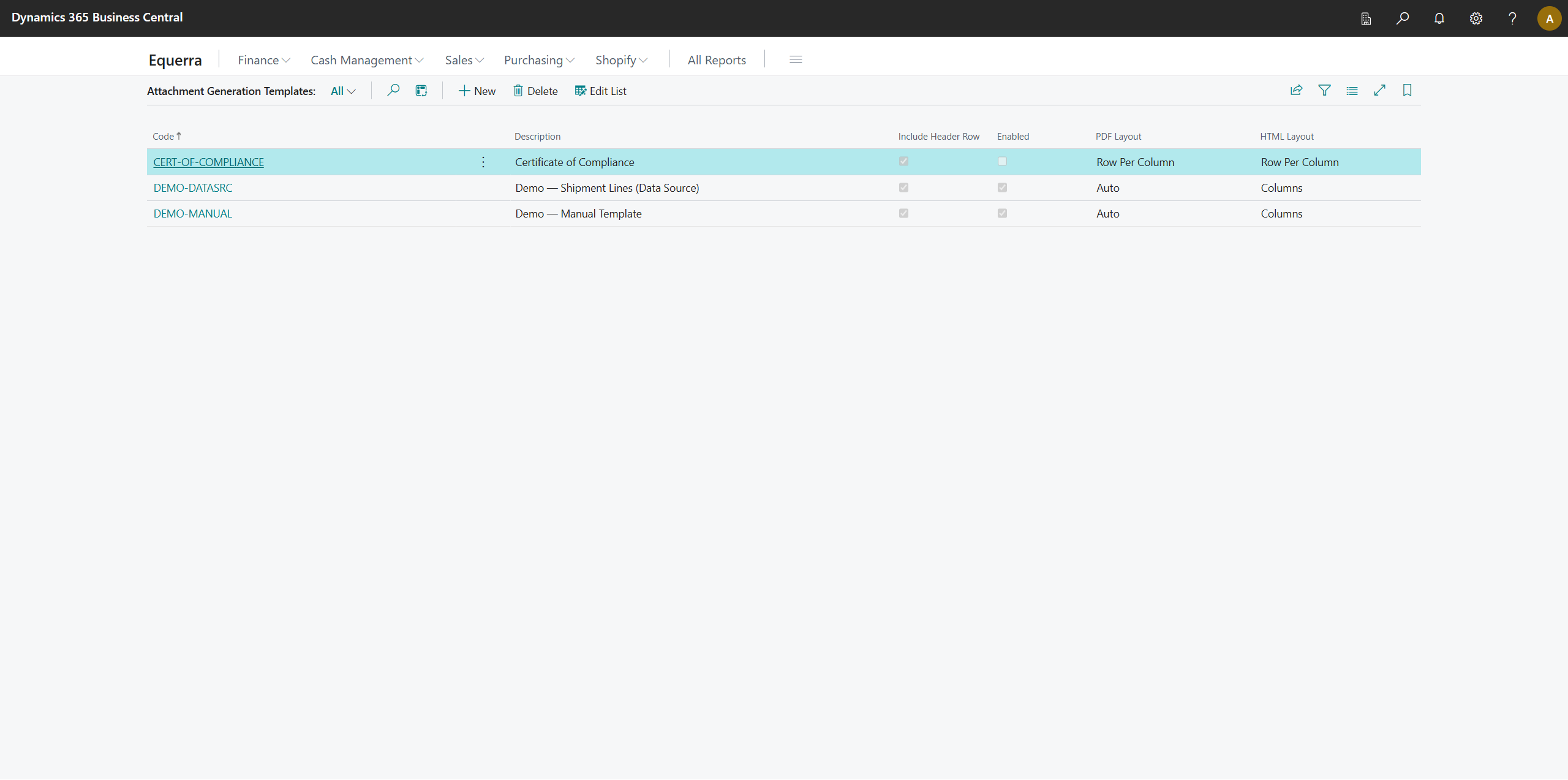
- Fill in the template settings as described below.
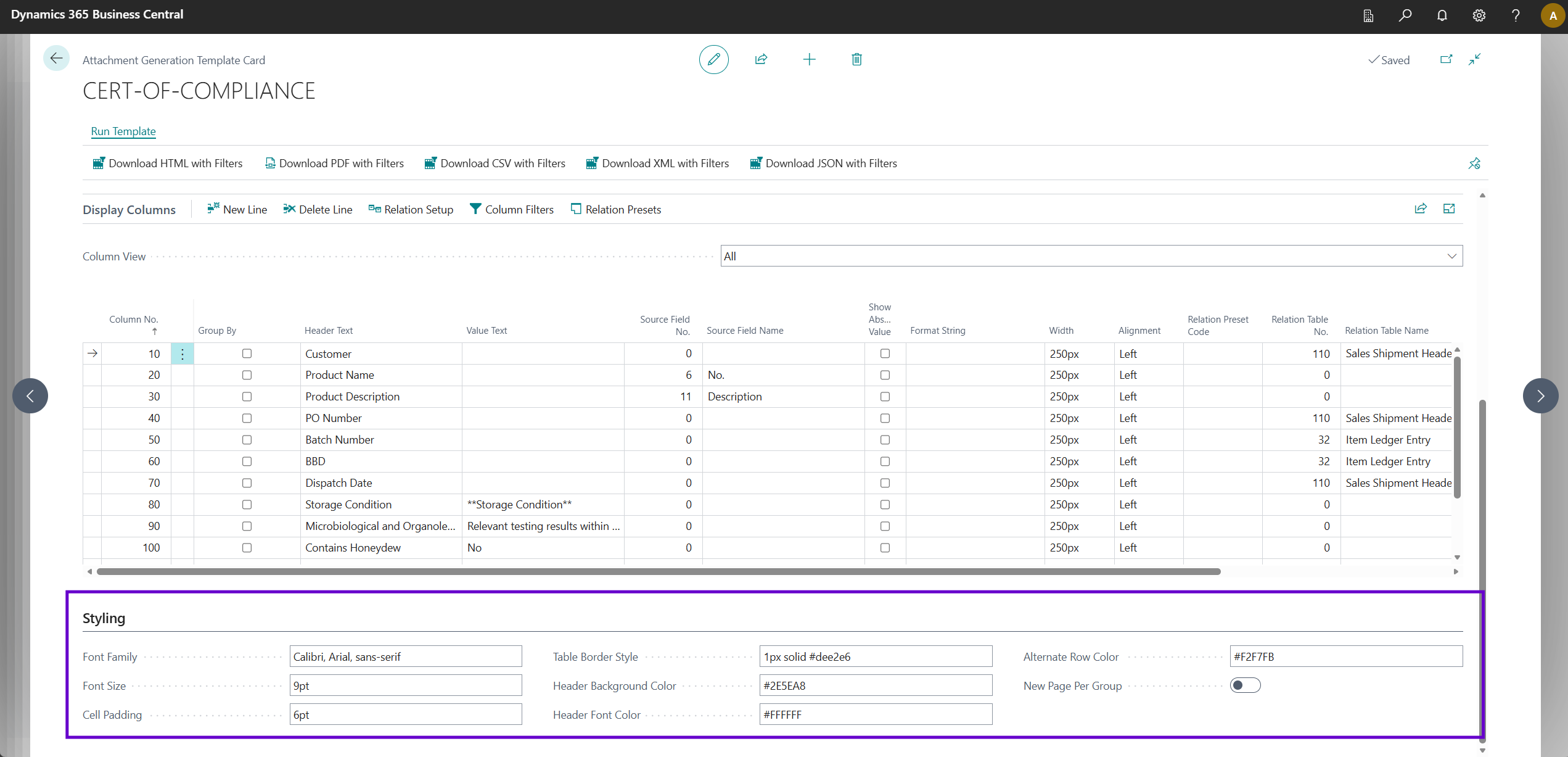
Template Card Fields
| Field | Description |
|---|---|
| Code | A unique code identifying this template (up to 20 characters). |
| Description | A description for this template. |
| Template Type | Determines how the template is built: Manual (define rows and cells individually) or Data Source (automatically generates rows from a source table). |
| Include Header Row | If enabled, a header row is auto-generated from column Column Name values. |
| Enabled | Specifies whether this template is active and available for use in Attachment Groups. A template must be enabled before it can be added to a group. When enabled, child records (columns, rows, cells, source filters, etc.) cannot be modified. Disable the template first to make changes. |
| Document Layout | Default document layout for PDF and Word output: Auto (selects Fixed Column for up to 7 columns, Row Per Column for more), Fixed Column, or Row Per Column. Can be overridden per attachment entry. |
| HTML Layout | Default HTML layout: Columns (standard table) or Row Per Column (each field as its own row). Can be overridden per attachment entry. |
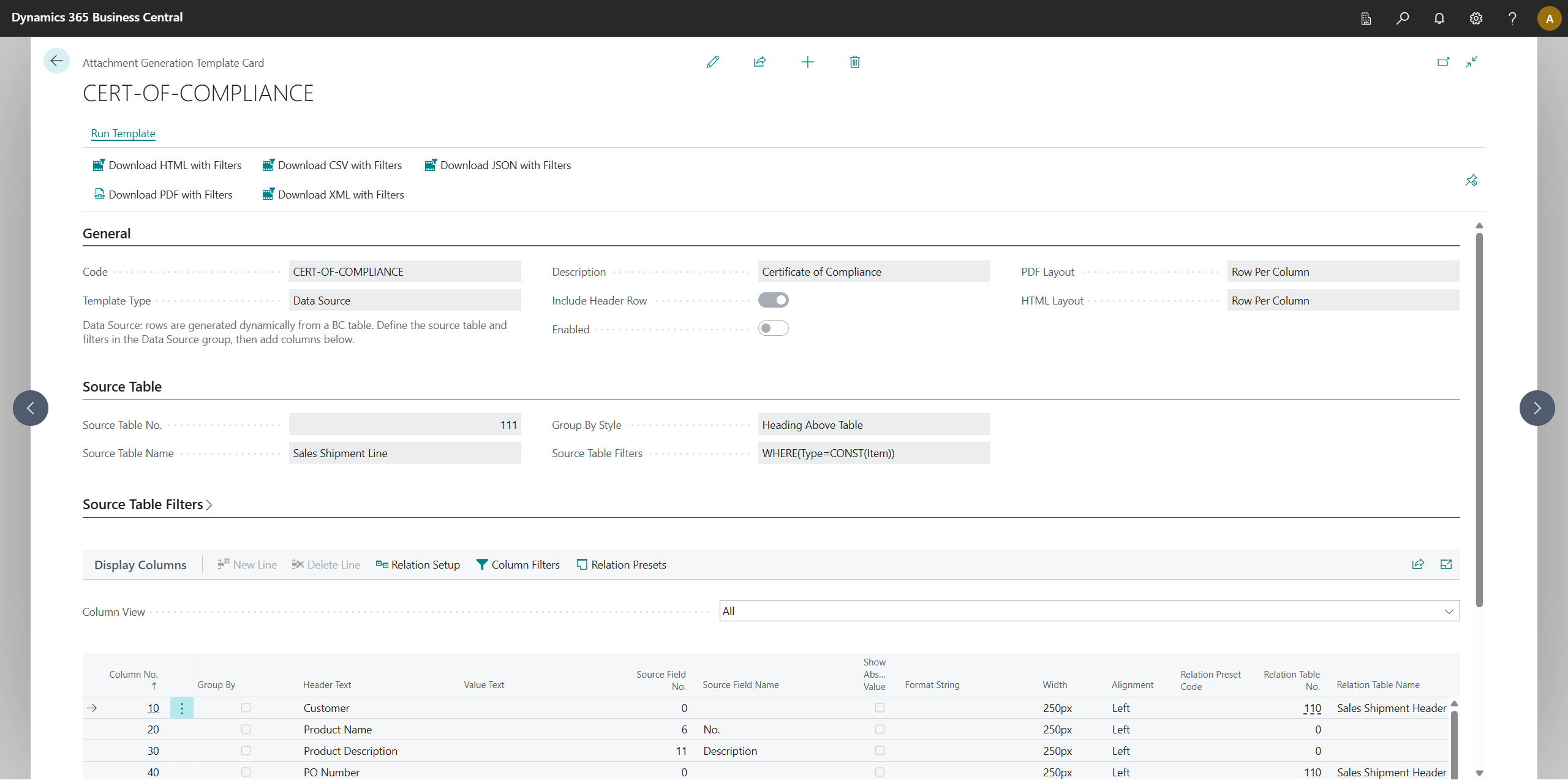
Styling Options
| Field | Description |
|---|---|
| Font Family | CSS font family for all text, e.g. Calibri, Arial, sans-serif. |
| Font Size | Font size in pt units, e.g. 9pt. Valid in both HTML and PDF output. |
| Cell Padding | Padding for table cells in pt units, e.g. 6pt. Valid in both HTML and PDF output. |
| Table Border Style | CSS border style for the HTML table, e.g. 1px solid #cccccc. |
| Header Background Color | CSS background colour for the header row, e.g. #9F29EE. |
| Header Font Color | CSS text colour for header row text, e.g. #FFFFFF. |
| Alternate Row Color | CSS background colour for alternating data rows, e.g. #D9E2F3. Leave blank for no alternation. |
| New Page Per Group | If enabled, each group starts on a new page in PDF output. Only applies when grouping is configured (i.e. one or more columns have Group By enabled). Note: This setting does not apply to Word output — groups are separated by a blank row instead. |
Word Output — Limitations
Word output is rendered using dedicated Word-only reports (Word Output_ELA_EQL and Word Matrix Output_ELA_EQL) with native Word layouts and content controls. Word documents can be downloaded via Download Word with Filters on the Template Card, or rendered as PDF via the PDF (Word Layout) output format on attachment entries.
The following limitations apply compared to RDLC PDF and HTML output:
| Limitation | Details |
|---|---|
| Styling fields are not applied | Font Family, Font Size, Cell Padding, Table Border Style, Header Background Color, Header Font Color, and Alternate Row Color are ignored in Word output. The Word layout uses fixed styling (bold blue labels, grey separators). To customise the appearance, edit the Word layout template (.docx) directly in Word. |
| New Page Per Group | Not supported in Word output. Groups are separated by a blank spacer row instead of page breaks. |
| No conditional row styling | Alternating row colours and group-specific styling cannot be applied. All rows in the repeating section use the same cell template. |
| Column header row on page 2+ | The column header row does not repeat on subsequent pages in the Fixed Column layout. |
| Company logo | The company logo displays in the page header on every page via a picture content control bound to the CompanyInformation dataitem. |
PDF Output — Report Layout
PDF output uses separate RDLC-only reports (PDF Output_ELA_EQL and PDF Matrix Output_ELA_EQL). The company logo and report title are rendered in the page header so they appear once per page rather than per group.
The PDF (Word Layout) output format renders the Word layout reports as PDF. This is the recommended option for email attachments when Word-style formatting is preferred. The standalone DOCX format is not available as an email attachment output format — use Download Word with Filters on the Template Card to produce an editable Word document.
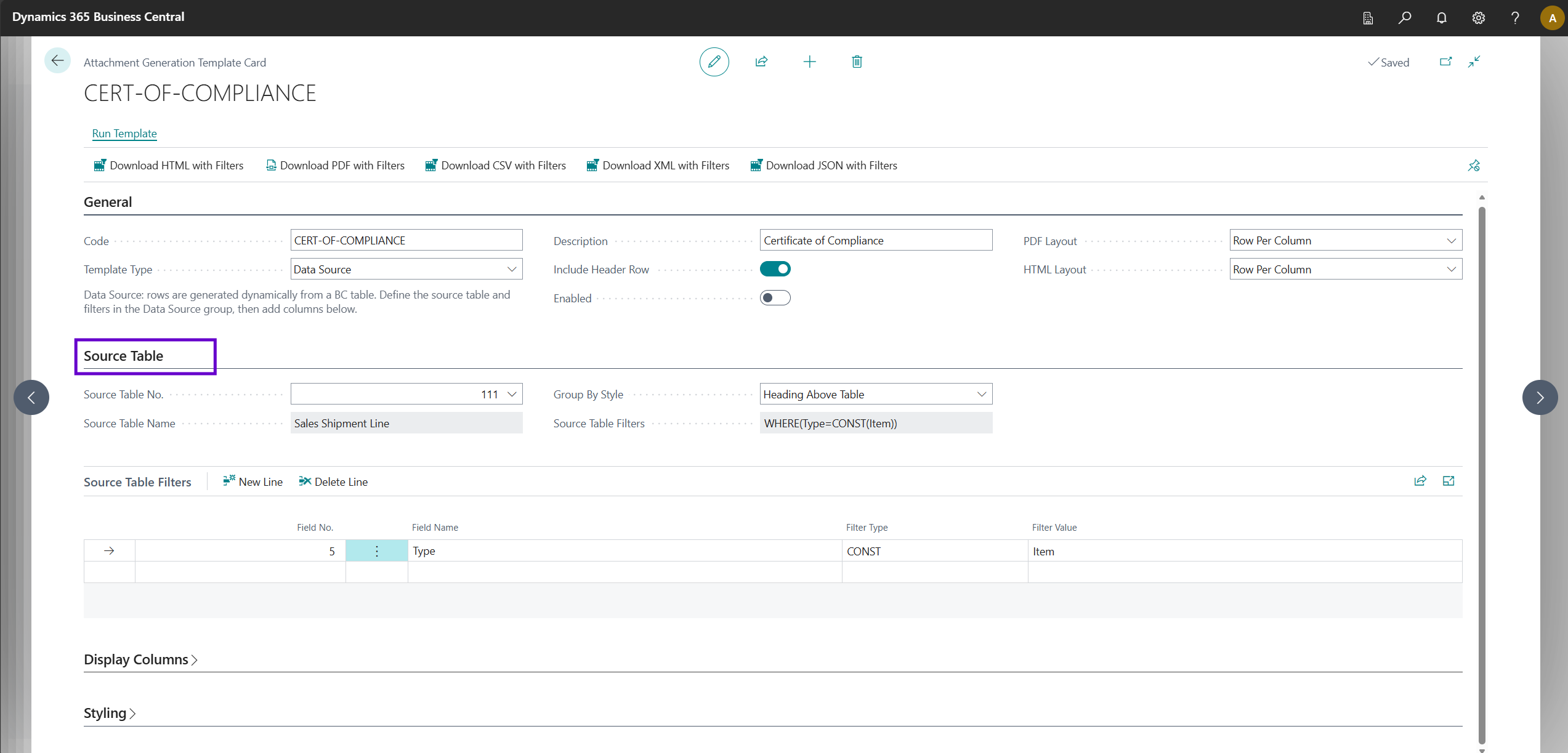
Data Source Options (visible when Template Type = Data Source)
| Field | Description |
|---|---|
| Source Table No. | The Business Central table to read data from. Use the lookup to browse available tables. |
| Source Table Name | The name of the selected source table (read-only). |
| Group By Style | Controls how grouped values are displayed when columns have Group By enabled: Heading (group values appear as headings above each group's table), Column In Table (group values appear as a column within the table), or Heading & Column (both). |
| Source Table Filters | A read-only display of the current filter applied to the source table, built from the Source Table Filters subpage. |
Configuring Columns
Columns define the structure of the generated output. Use the Columns subpage on the Template Card.
| Field | Description |
|---|---|
| Column No. | The column sequence number. |
| Group By | When enabled, output is grouped by this column. Group-by columns appear as headings rather than data columns. Multiple columns can be marked for multi-level grouping (ordered by Column No.). |
| Column Name | The column name. Auto-populated from the Source Field Name when a source field is set, but can be overridden. Used as the header text when Include Header Row is enabled. |
| Value Text | A fixed text value to display in every row of this column. Mutually exclusive with Source Field No. and Relation Table. |
| Width | CSS width for the column, e.g. 150px or 20%. |
| Alignment | The horizontal alignment for this column: Left, Center, or Right. |
| Source Field No. | The field number on the source table to display in this column. Use the lookup to browse available fields. Mutually exclusive with Value Text and Relation Table. |
| Source Field Name | The name of the selected source field (read-only). |
| Show Absolute Value | When enabled, negative decimal values are displayed as their absolute (positive) value. Applicable to numeric fields only. |
| Format String | An AL Format string applied to the column values, e.g. <Precision,2:2><Standard Format,0>. |
| Relation Preset Code | Select a pre-configured relation preset to quickly apply a related table lookup with its join field mappings. The preset's relation table is applied automatically. See Relation Presets. |
| Relation Table Name | The name of the related table (read-only). Configure via the Relation Setup action. |
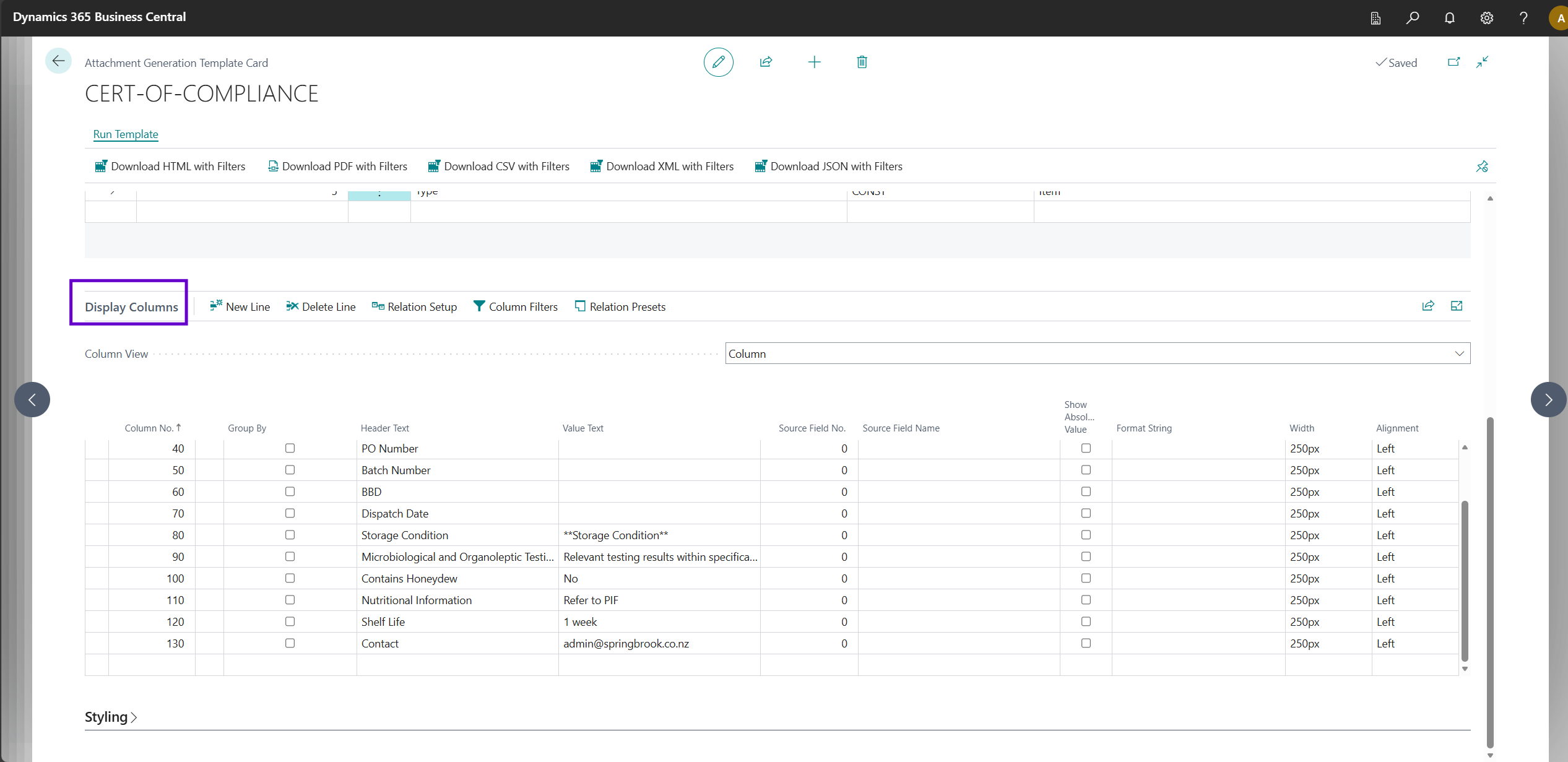
Column Actions
The Columns subpage provides the following actions:
- Relation Setup — Opens the Column Relation Setup card to configure a related table lookup for the selected column: set the relation table, display field, and source-to-related field join mappings.
- Column Filters — Opens the Column Filters page to define source table filters that apply specifically to this column (in addition to the template-level Source Table Filters).
- Relation Presets — Opens the Relation Presets list to create and manage named relation presets for this template.
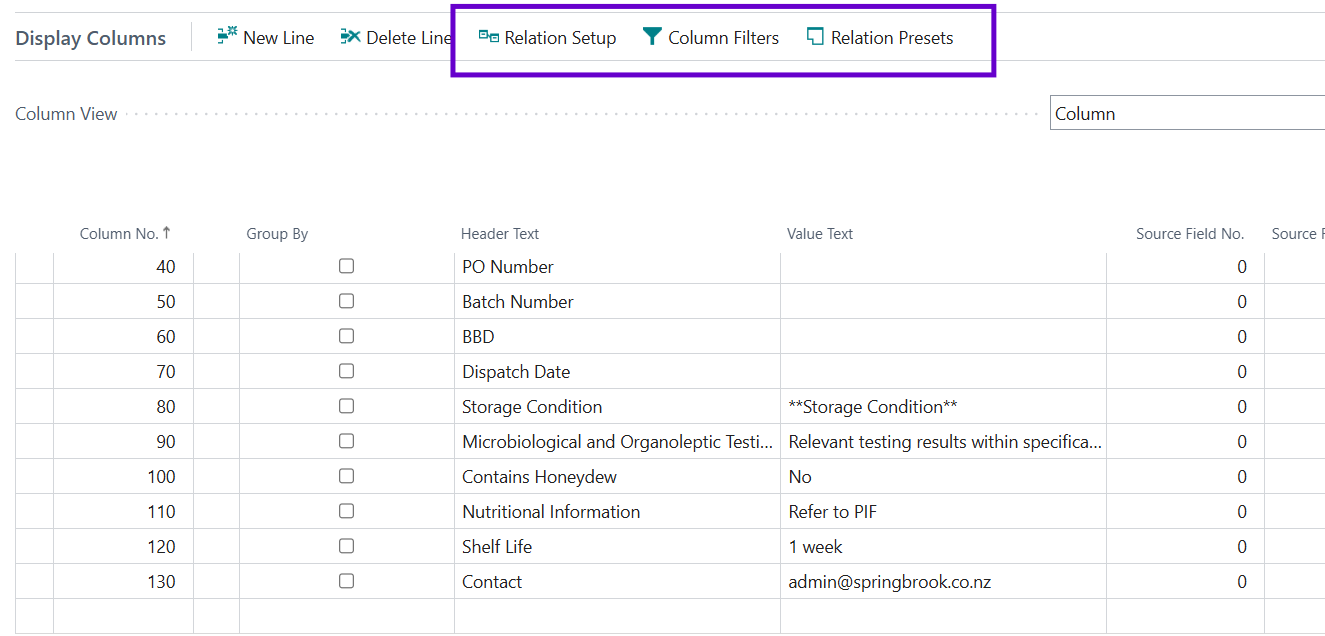
Column Relation Setup
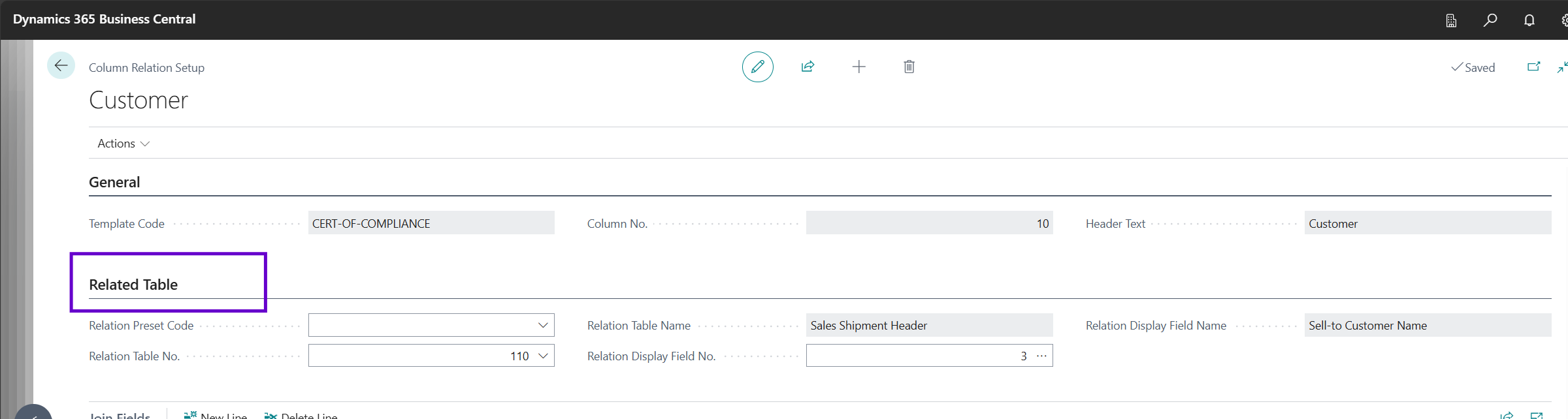
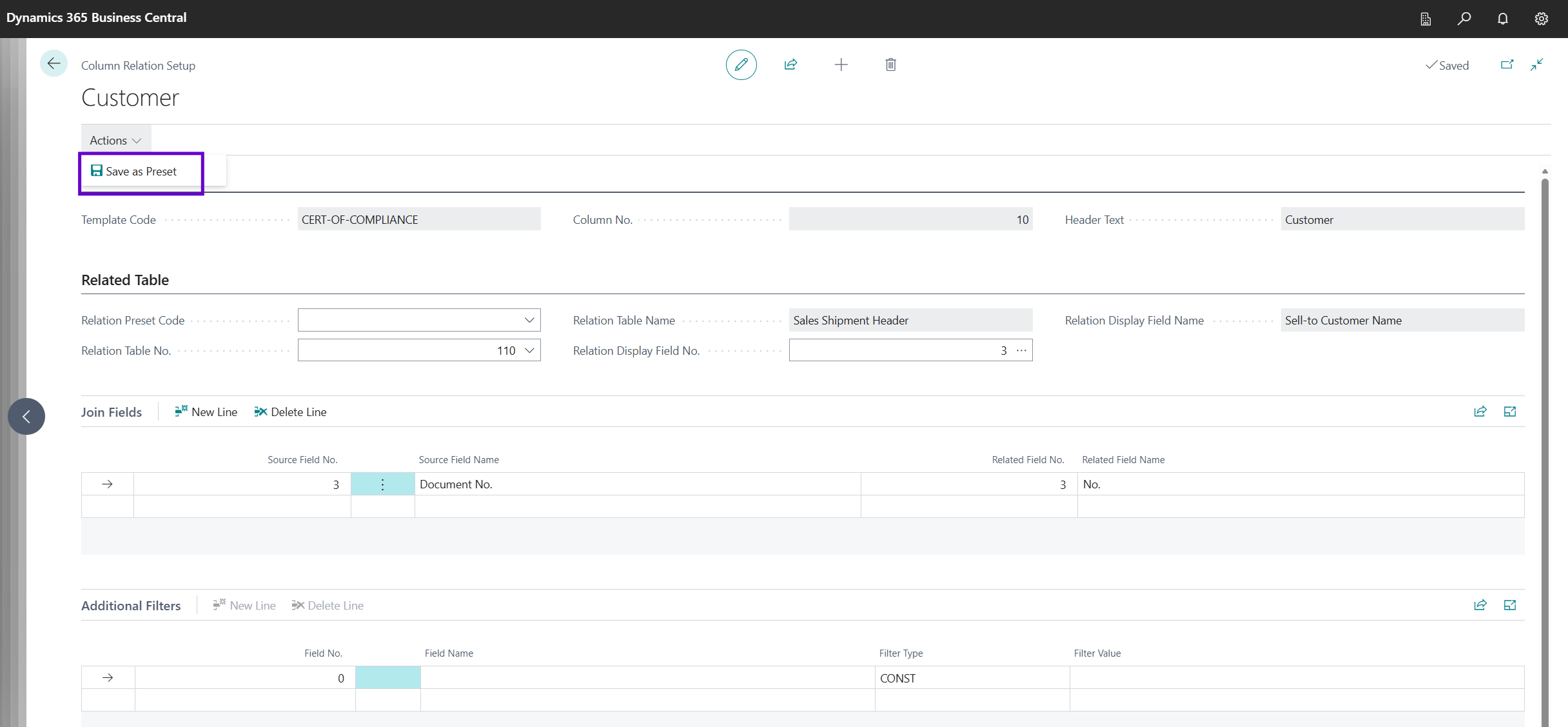
Open the Relation Setup action from the Columns subpart to configure how a column looks up values from a related table. The Column Relation Setup card contains:
Related Table group:
| Field | Description |
|---|---|
| Relation Preset Code | Select a named relation preset to apply its pre-configured related table and join field mappings. When set, the Relation Table No. is applied automatically and read-only. |
| Relation Table No. | The table to look up display values from (e.g. the Item table). Read-only when a preset is selected. |
| Relation Table Name | The name of the related table (read-only). |
| Relation Display Field No. | The field on the related table whose value is shown in this column (e.g. Description on the Item table). |
| Relation Display Field Name | The name of the selected display field (read-only). |
Join Fields subpart — Each row maps a source table field to a field on the related table to establish the join:
| Field | Description |
|---|---|
| Source Field No. | Field on the source table whose value is matched to the related table. |
| Source Field Name | Name of the source field (read-only). |
| Related Field No. | Field on the related table to match against the source field value. |
| Related Field Name | Name of the related field (read-only). |
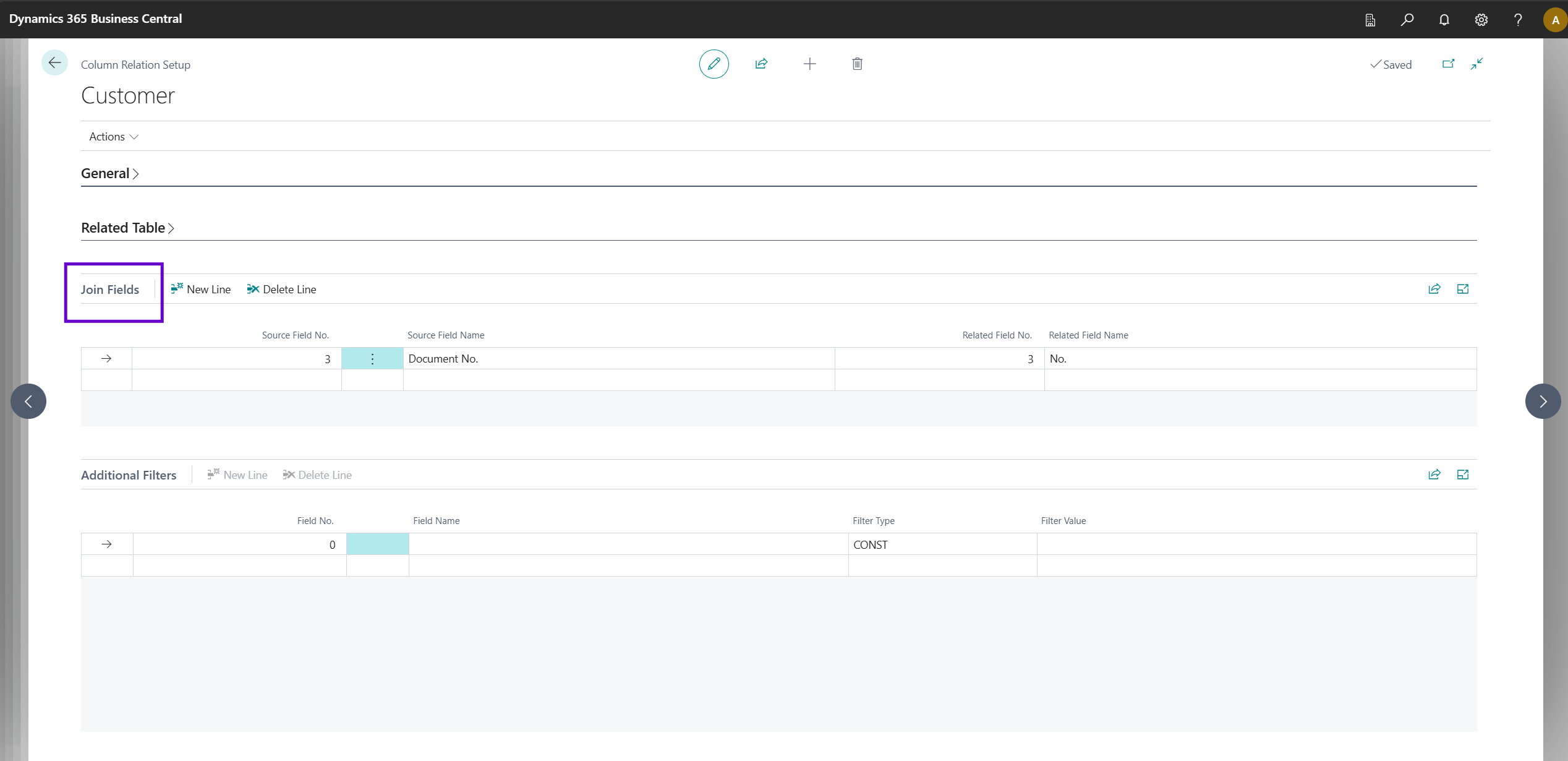
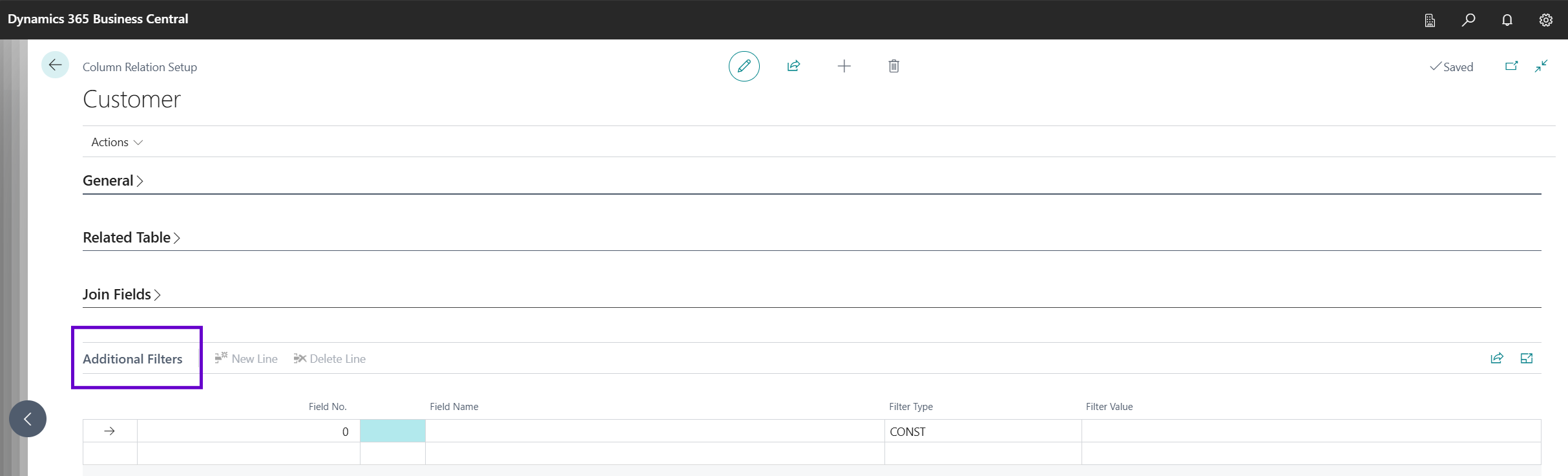
Additional Filters subpart — Static filters applied directly to the related table. Not visible when a preset is selected (preset filters are shown read-only instead):
| Field | Description |
|---|---|
| Field No. | The field on the related table to filter on. |
| Field Name | The name of the selected field (read-only). |
| Filter Type | Constant (exact value match) or Filter (allows ranges and wildcards). |
| Filter Value | The value or expression to filter by. |
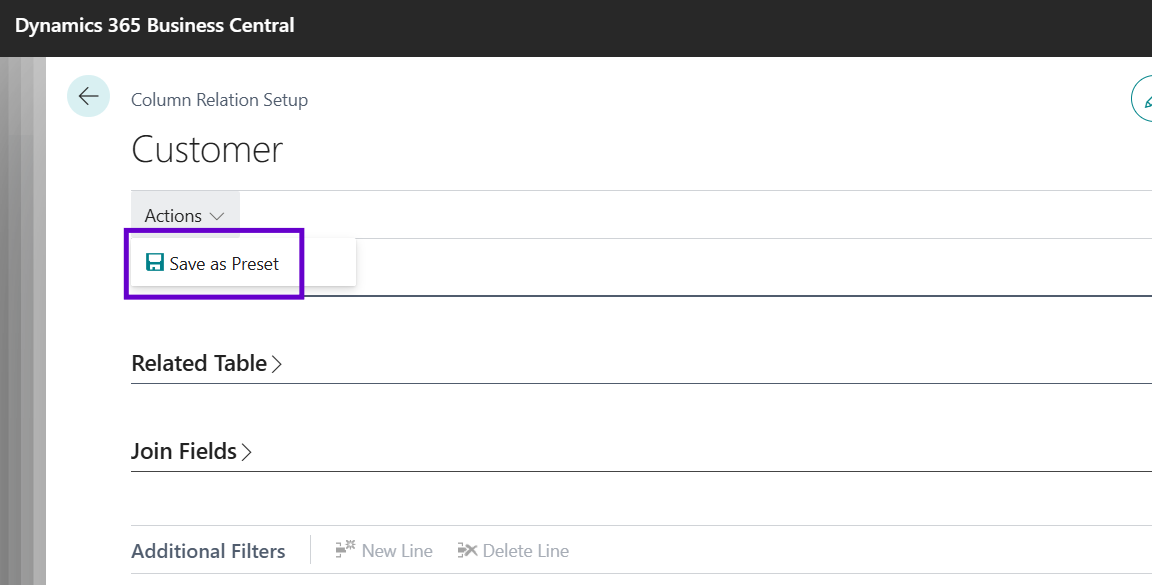
Action: Save as Preset — Available when a relation table is configured and no preset is already selected. Saves the current relation table, join fields, and additional filters as a new named preset and links this column to it. The preset code is auto-generated from the relation table name.
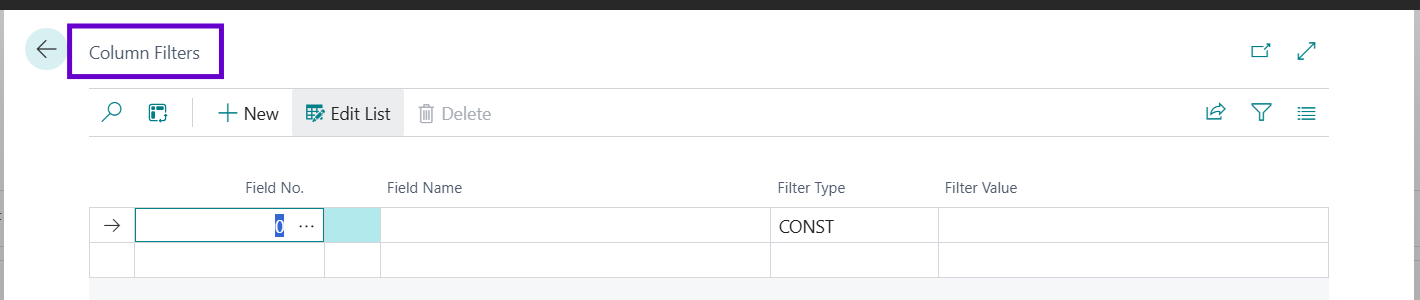
Column Filters
Column Filters restrict source table records specifically for an individual column, in addition to the template-level Source Table Filters and any Runtime Filters. Open via the Column Filters action on the Columns subpart.
| Field | Description |
|---|---|
| Field No. | The field on the source table to filter on. Use the lookup to select from available fields. |
| Field Name | The name of the selected field (read-only). |
| Filter Type | Constant (matches an exact value) or Filter (allows ranges and wildcards). |
| Filter Value | The value or expression to filter by. For Filter type, you can use ranges (1000..2000) or wildcards (*text*). |
Relation Presets
Relation Presets let you define a named, reusable relation configuration — a related table together with its join field mappings and optional additional filters — at the template level. Once defined, a preset can be applied to multiple columns without reconfiguring each one individually.

Managing Presets
Access the Relation Presets list from the Relation Presets action on the Columns subpart, or from the Relation Setup card.
Relation Presets list fields:
| Field | Description |
|---|---|
| Template Code | The template this preset belongs to. |
| Code | A unique code identifying this preset. |
| Description | Description of the relation preset. |
| Relation Table No. | The related table this preset applies to. |
| Relation Table Name | The name of the related table (read-only). |
Use the Edit Preset action to open the Relation Preset Card, which contains:
- Join Fields — source-to-related field mappings (same structure as Column Relation Setup join fields).
- Additional Filters — static filters applied to the related table when this preset is used.
Creating a Preset from an Existing Column
From the Column Relation Setup card, use the Save as Preset action (available when a relation table is set and no preset is already linked). This copies the current relation table, join fields, and additional filters into a new named preset and automatically links the column to it.
File Name Tokens
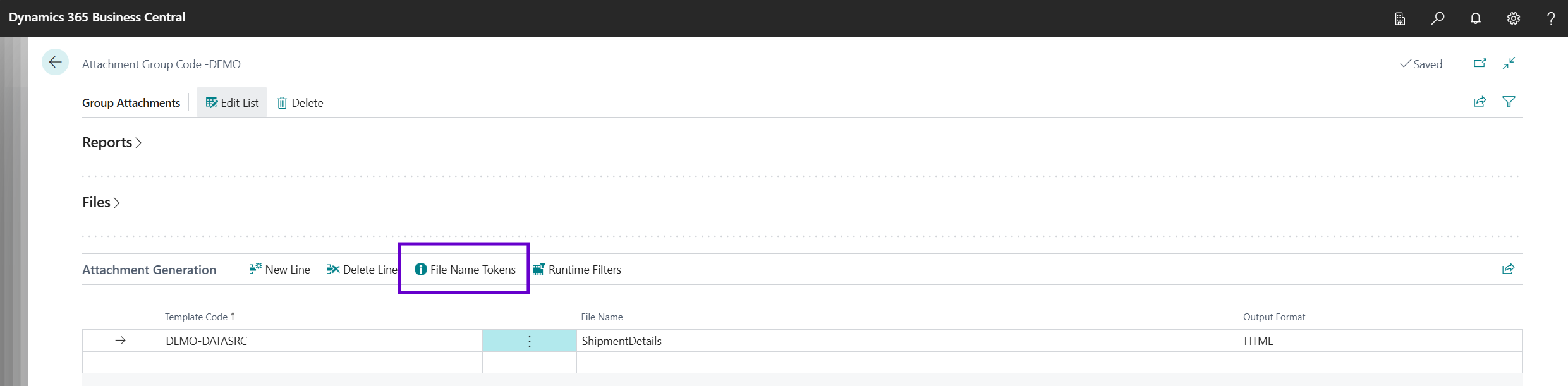
The File Name field on Attachment Generation entries in the Attachment Group supports the following tokens, which are resolved at generation time:
| Token | Resolves To |
|---|---|
{No.} | The record's primary identifier (e.g. customer No., document No., vendor No.). |
{Date} | Today's date in YYYYMMDD format (e.g. 20260227). |
{Group} | The attachment group code. |

Example: Invoice-{No.}-{Date} produces Invoice-SI00123-20260227.
Use the File Name Tokens action in the Attachment Generation section of the Group Attachments page to view the full list of available tokens.
Configuring Rows (Manual Templates)
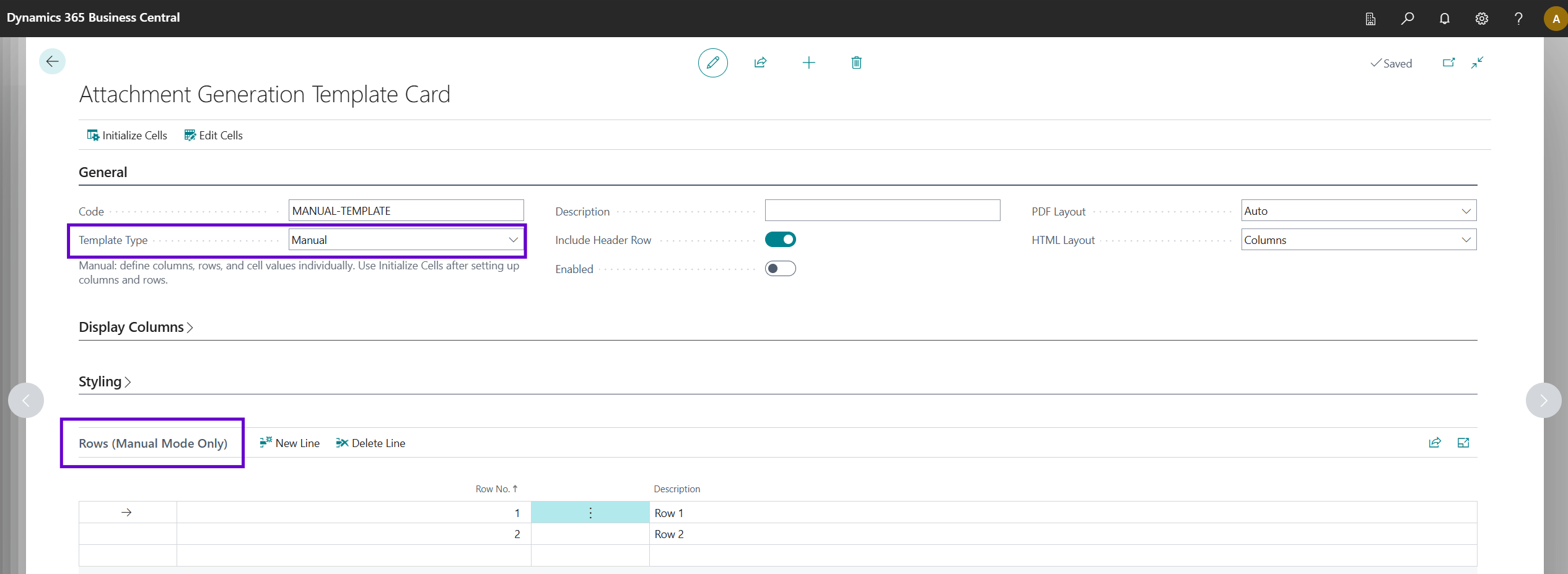
When using the Manual template type, define rows using the Rows subpage:
| Field | Description |
|---|---|
| Row No. | The row sequence number. |
| Description | Internal description for this row (not shown in output). |
Configuring Cells (Manual Templates)
For Manual templates, each cell at the intersection of a row and column can be configured individually. Use Initialize Cells to create all row/column intersection records, then open Edit Cells to configure values:
| Field | Description |
|---|---|
| Row No. | The row this cell is in. |
| Column No. | The column this cell is in. |
| Source Type | How the cell value is determined: Constant (a fixed value), Field Lookup (from a table field), or Aggregate (a calculated value). |
| Constant Value | The fixed text value for the cell (when Source Type is Constant). |
| Source Table | The table to look up the value from (when Source Type is Field Lookup or Aggregate). |
| Source Field | The field on the source table to retrieve the value from. |
| Source Filter | A filter to apply to the source table when looking up the value. |
| Aggregate Method | The aggregate function to apply: None, Sum, Count, Average, Min, or Max (when Source Type is Aggregate). |
Source Table Filters
For Data Source templates, you can define filters on the source table to control which records are included. Use the Source Table Filters subpage on the Template Card:
| Field | Description |
|---|---|
| Field No. | The field on the source table to filter on. Use the lookup to select from available fields. |
| Field Name | The name of the selected field (read-only). |
| Type | The filter type: CONST (a fixed filter value) or FILTER (a Business Central filter expression). |
| Value | The filter value or expression to apply. |
Runtime Filters
Runtime Filters allow filter values to be supplied at the time of sending, rather than being hard-coded in the template. This is useful when the filter depends on the specific document being sent (e.g. a Document No.).
Configure Runtime Filters from the Runtime Filters action in the Attachment Generation section of the Group Attachments page:
| Field | Description |
|---|---|
| Field No. | The field on the source table to filter at runtime. Use the lookup to select from available fields. |
| Field Name | The name of the selected field (read-only). |
| Default Value | A default filter value. Use {No.} to auto-fill with the document or record number at send time. |
When an email is sent with an Attachment Group containing generated attachments that have runtime filters, the user may be prompted to review or enter filter values via the Select Attachments dialog. This dialog allows you to:
- Choose which attachments to include
- Review and edit runtime filter values before the attachments are generated
Template Actions
The Template Card provides the following actions, grouped by output format:
Process (Manual mode only):
- Initialize Cells — Creates cell records for all row/column intersections that do not already exist. Run this after defining columns and rows.
- Edit Cells — Opens the Cells page to configure cell values for the template.
Run Template (Data Source templates only):
- Download HTML with Filters — Opens a filter prompt pre-populated from the template's runtime filters, then downloads the HTML output.
- Download PDF with Filters — Opens a filter prompt, then generates and downloads the PDF output.
- Download Word with Filters — Opens a filter prompt, then generates and downloads an editable Word (.docx) document using the dedicated Word reports (Word Output_ELA_EQL / Word Matrix Output_ELA_EQL). See Word Output — Limitations for details on what styling is supported.
- Download CSV with Filters — Opens a filter prompt, then downloads the CSV output.
- Download XML with Filters — Opens a filter prompt, then downloads the XML output.
- Download JSON with Filters — Opens a filter prompt, then downloads the JSON output.
Examples
For worked examples and step-by-step walkthroughs of common scenarios, see Examples.